donderdag 17 mei 2012

Linux Mint 13 “Maya” RC released!


The team is proud to announce the release of Linux Mint 13 “Maya” RC.
Available in two editions, Linux Mint 13 features the choice between a productive, stable and mature MATE 1.2 desktop and the brand new modern-looking and exciting Cinnamon 1.4. These two desktops are among the best available, they’re perfectly integrated within Linux Mint and represent great alternatives to Gnome 2 users. Linux Mint 13 is also an LTS (Long Term Support) release and it will be supported until April 2017.
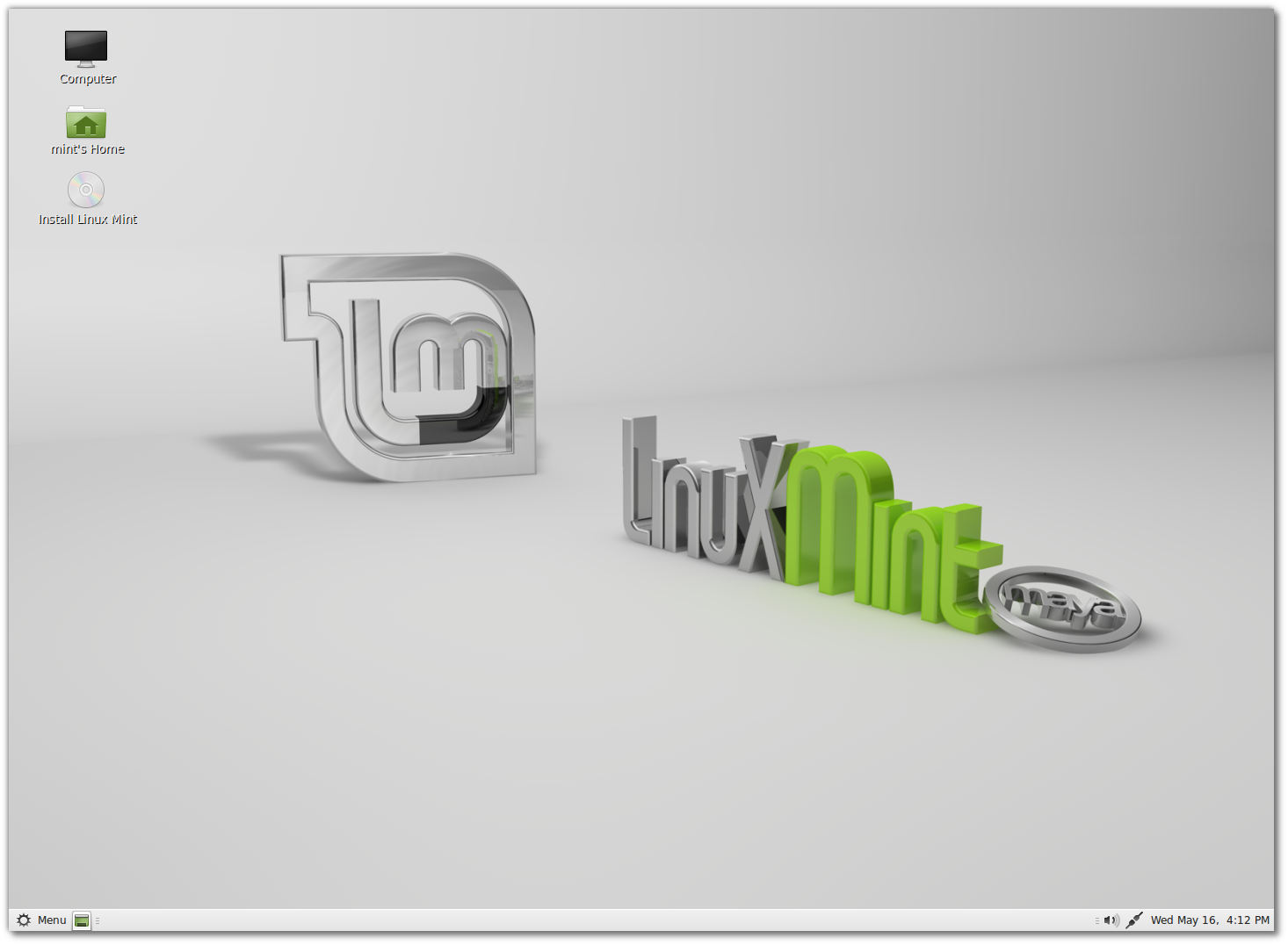

MATE Edition Cinnamon Edition

New features at a glance:
For a complete overview and to see screenshots of the new features, visit: “What’s new in Linux Mint 13“.
Important info:
  • Windows popping behind the installer
  • Mint4Win
  • Desktop icons in Cinnamon
Make sure to read the “Release Notes” to be aware of important info or known issues related to this release.
System requirements:
  • x86 processor (Linux Mint 64-bit requires a 64-bit processor. Linux Mint 32-bit works on both 32-bit and 64-bit processors).
  • 512 MB RAM (1GB recommended for a comfortable usage).
  • 5 GB of disk space
  • Graphics card capable of 800×600 resolution
  • CD/DVD drive or USB port
Bug reports:
Please report any bug you may find by leaving a comment on this blog.
Download:
Md5 sum:
  • MATE 32-bit: 3c86a1f6d203a953ddd62f974707dad5
  • MATE 64-bit: 776a2e820362833cdbb056c035a5f2c1
  • Cinnamon 32-bit: aa1af21ba8196148a801196ec68dae87
  • Cinnamon 64-bit: 3786b11fa3a28dcfc3941295e872c4ce
Torrents:
HTTP Mirrors for the MATE 32-bit DVD ISO:
HTTP Mirrors for the MATE 64-bit DVD ISO:
HTTP Mirrors for the Cinnamon 32-bit DVD ISO:
HTTP Mirrors for the Cinnamon 64-bit DVD ISO:
Enjoy!
We look forward to receiving your feedback. Thank you for using Linux Mint and have a lot of fun testing the release candidate!


New features in Linux Mint 13

With the rock-solid MATE 1.2 and the brand new Cinnamon 1.4, Linux Mint provides a choice between two of the most popular Linux desktops. Whether you're looking for a mature and productive environment, or you're interested in being part of an exciting new adventure, we hope you enjoy your experience with Linux Mint 13. Both the MATE and the Cinnamon edition were built with the highest quality of integration and will be supported until April 2017.

MATE 1.2


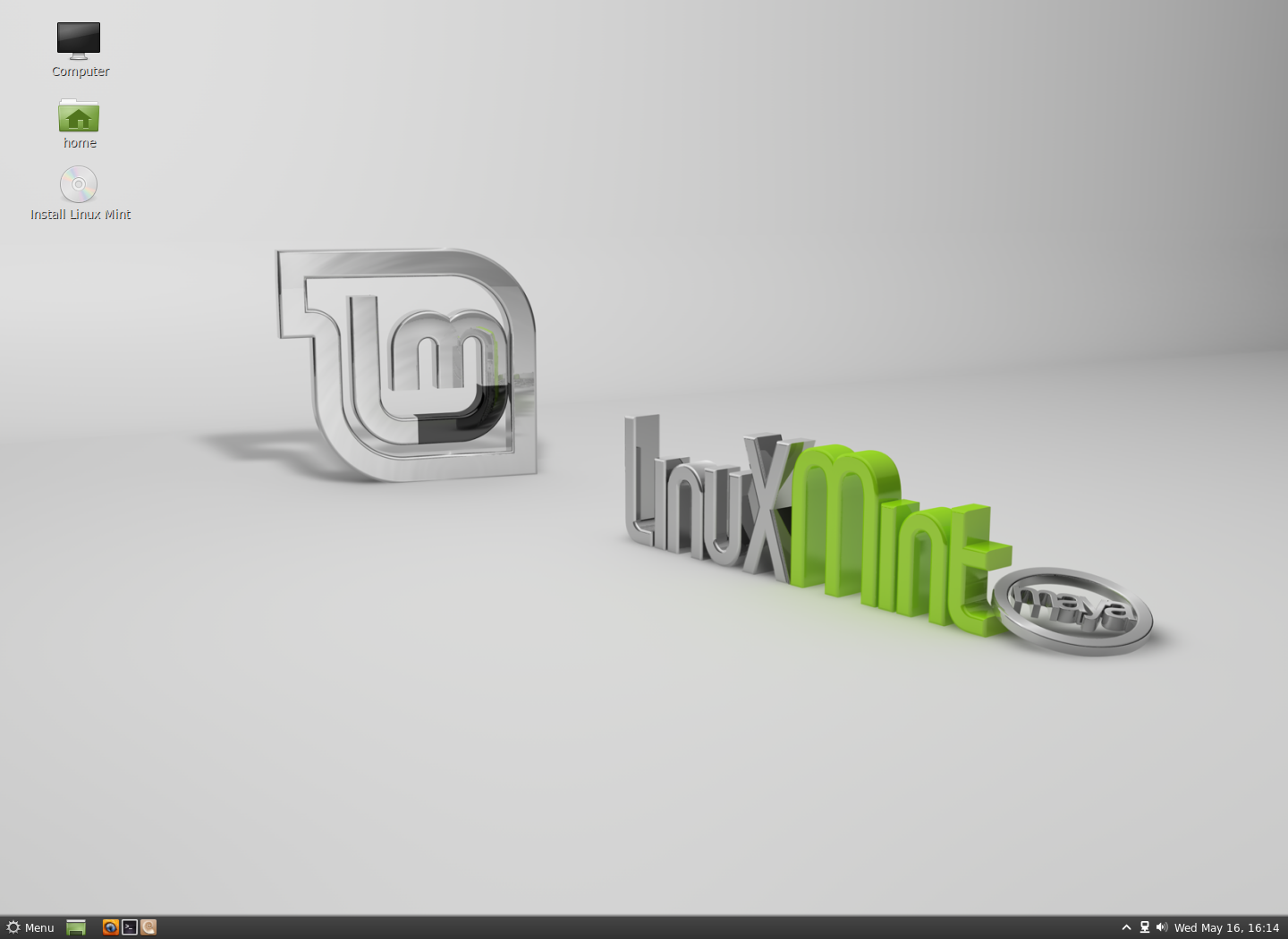
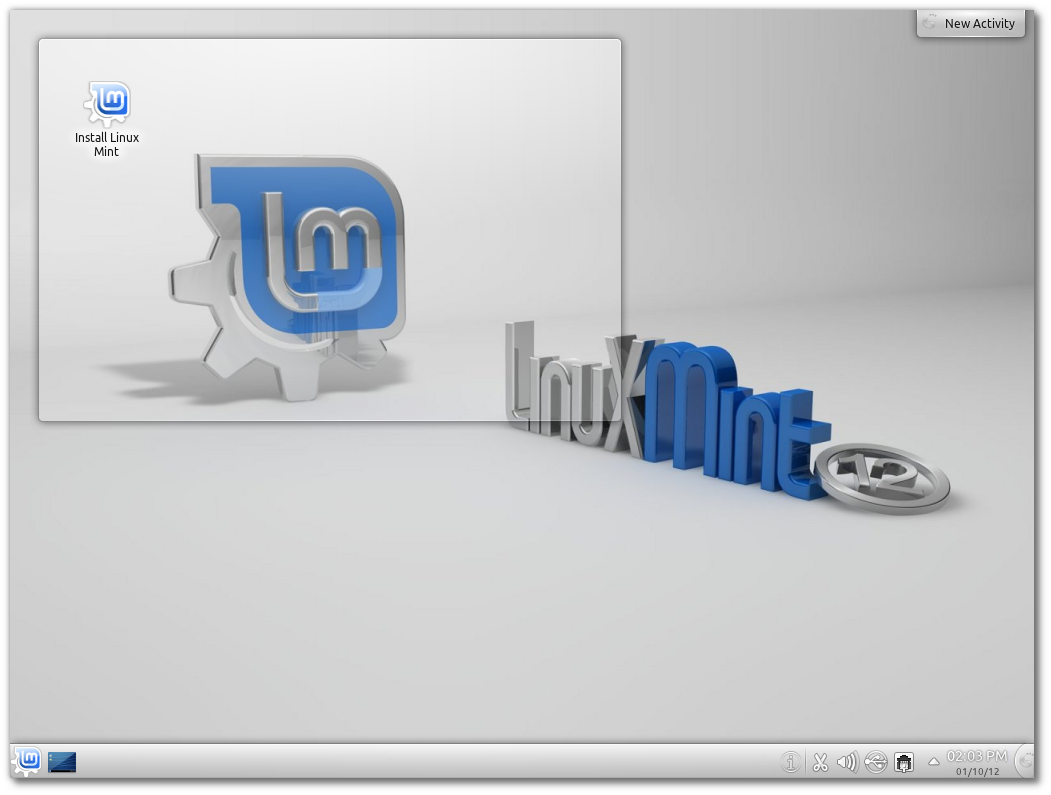
Linux Mint 13 "Maya" MATE Edition
Until Linux Mint 11, the main edition featured a "Gnome 2" desktop. In the last two years, Gnome 2 was discontinued and abandoned by its development team and a majority of Linux distributions. Developers in the Linux community gathered and joined forces within a new project, called MATE, to save the Gnome 2 desktop. The latest Gnome 2 codebase was renamed and MATE now provides the same desktop as Gnome 2 under a different name.
Pros:
  • MATE is stable and it works on all computers
  • MATE is among the most productive and easy to use desktops available.
  • MATE continues where Gnome 2 left off and introduces its own incremental improvements.
  • MATE comes with support for mintMenu, mintDesktop, Compiz and everything that made Gnome 2 the most popular Linux desktop.
  • MATE is built with GTK2, it features more themes and integrates with more applications than any other desktop.
Cons:
  • Some parts of Gnome 2 were not migrated to MATE yet and a few aspects such as Bluetooth support might not work as well as they did with Gnome 2.

Cinnamon 1.4


Linux Mint 13 "Maya" Cinnamon Edition
Cinnamon was born for the same reasons as MATE. Gnome 2 was one of the core components of Linux Mint, and Gnome 3 lacked the features and design of a suitable alternative. Linux Mint started by developing the extra features it needed on top of Gnome 3 and eventually started to develop its own environment called Cinnamon.
Both Linux Mint and the MATE project came up with really good alternatives to Gnome, but in completely different ways.
Cinnamon is built on Clutter and Gnome 3. It's a modern-looking environment with a traditional and familiar desktop. It features compositing, animations and some unique innovations but it relies on 3D acceleration, lacks some of the features found in Gnome 2 and isn't yet compatible with every graphics card available on the market.
Pros:
  • Cinnamon is among the sleekest and most modern looking environments
  • Cinnamon features innovative features and emphasis on productivity with traditional desktop metaphors
  • Cinnamon is built on rapid technologies and its development pace is really fast
  • The Cinnamon community is very active, and produces a lot of new themes and applets
Cons:
  • Cinnamon requires 3D acceleration and might not work well for you, depending on your graphics card and/or drivers.
  • Cinnamon is brand new and unfortunately not yet as stable as more mature and established desktops such as MATE, KDE or Xfce.
  • Cinnamon relies on Gnome 3 and Clutter, which are also both brand new and going through rapid transformations.

MDM


MDM stands for "MDM Display Manager" :)
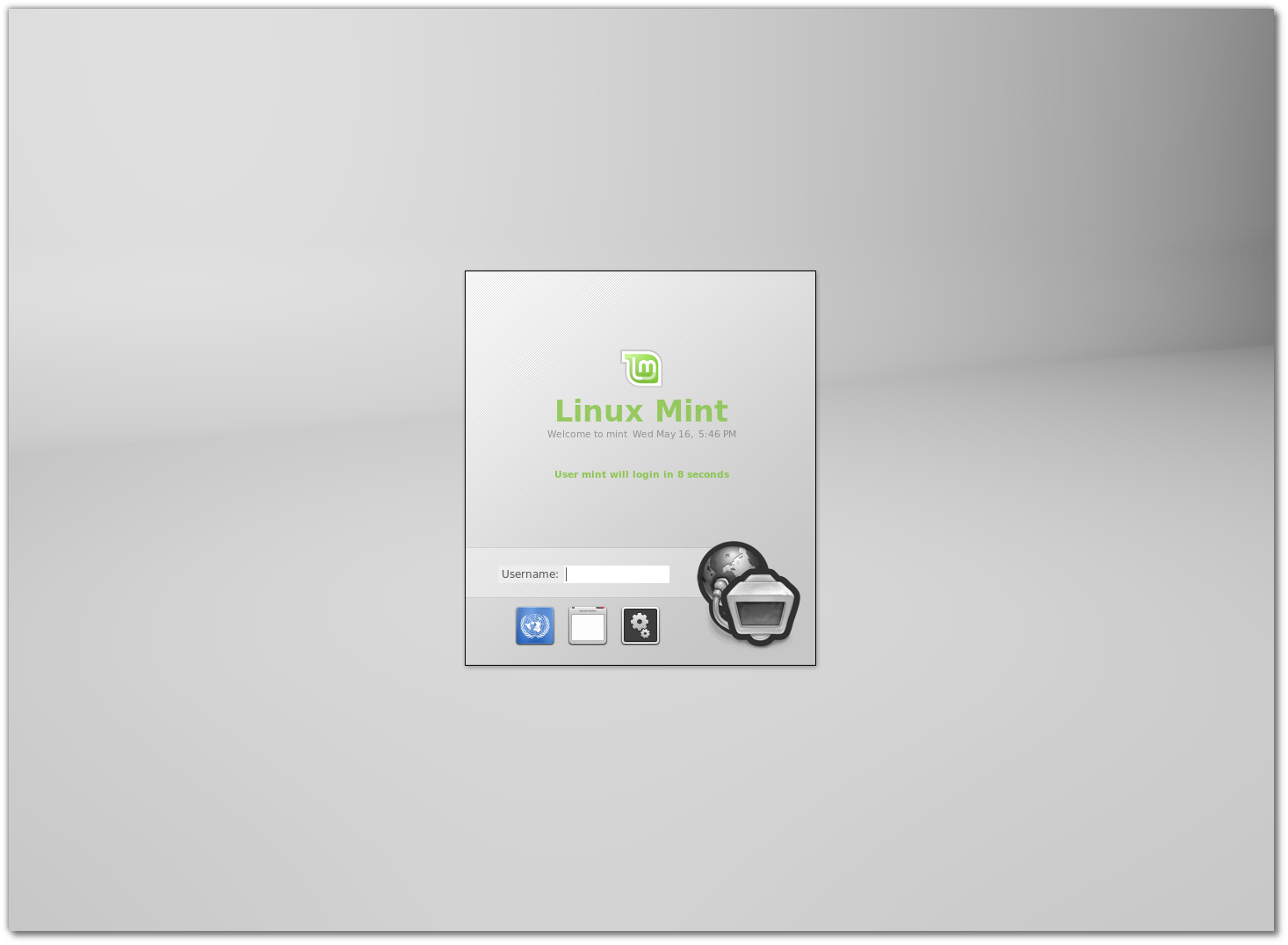
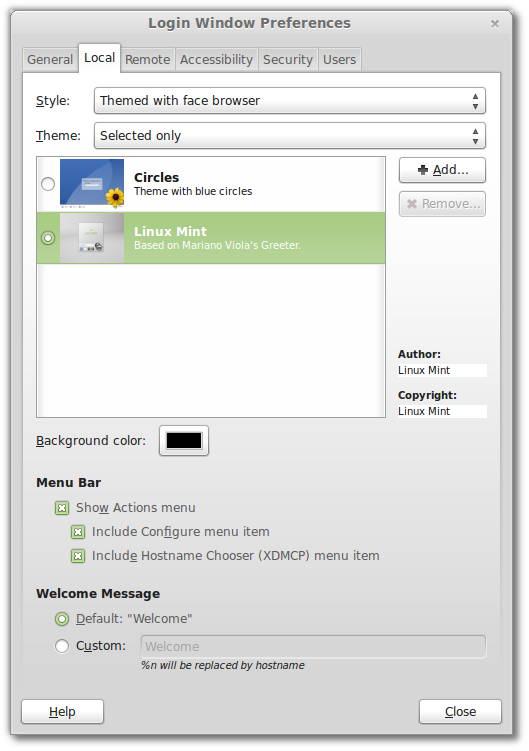
MDM is a new Display Manager, which code is based on GDM 2.20. It provides graphical configuration tools, themeability, remote, automatic and timed login, event scripting, language selection and it comes with more features than any other Display Manager currently available.

MDM comes with a lot of features and configuration options

Artwork improvements

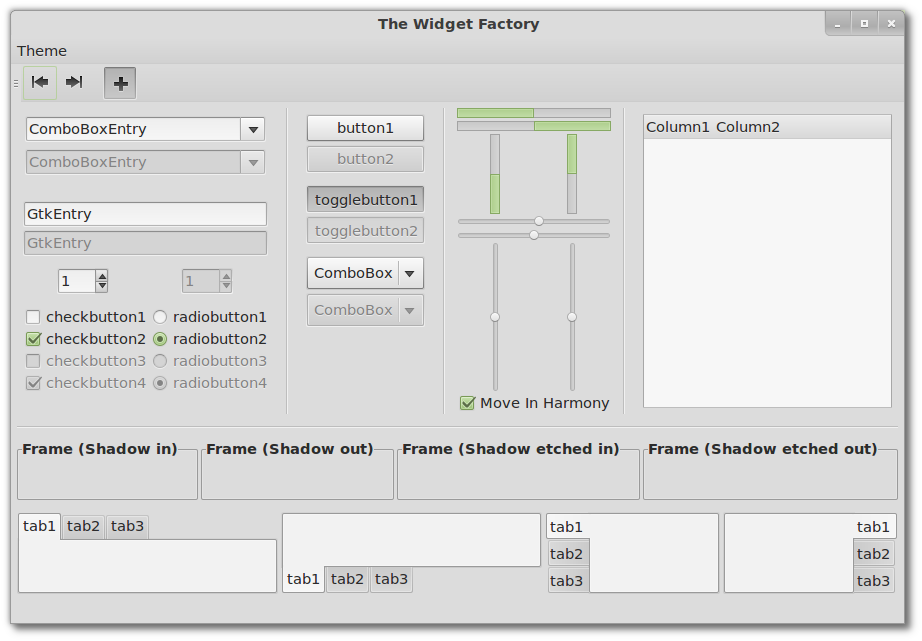
Linux Mint 13 features the latest Mint-X and Mint-Z themes and better support for GTK3.

The Mint-Z desktop theme
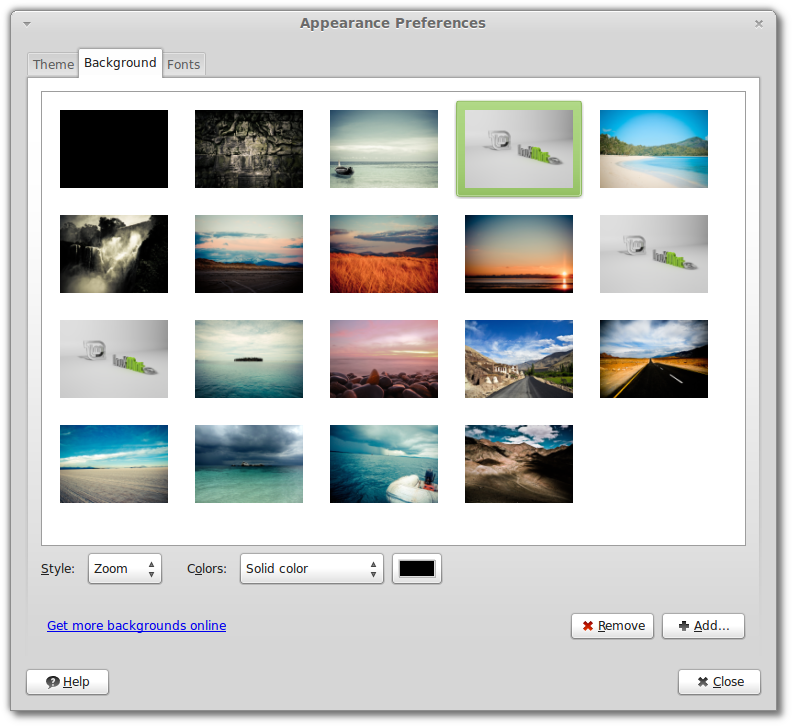
Backgrounds: The default background is complemented by a collection of beautiful photographs from an Irish artist called "masterbutler".

A collection of beautiful photographs from masterbutler
Yahoo: Linux Mint switches to Yahoo as the default search engine for the USA, Canada, the UK, Ireland, Germany, France, Italy and Spain. Yahoo is the 2nd biggest search engine in the World, and the first major search engine to share revenue with Linux Mint. The results page is full of features, it comes with a nice layout, images, videos and blogs search, points of interest, time filters and cached results. Underneath the interface, Yahoo comes with a strong network of advertisers and its addition represents a huge opportunity and an additional source of income for Linux Mint.
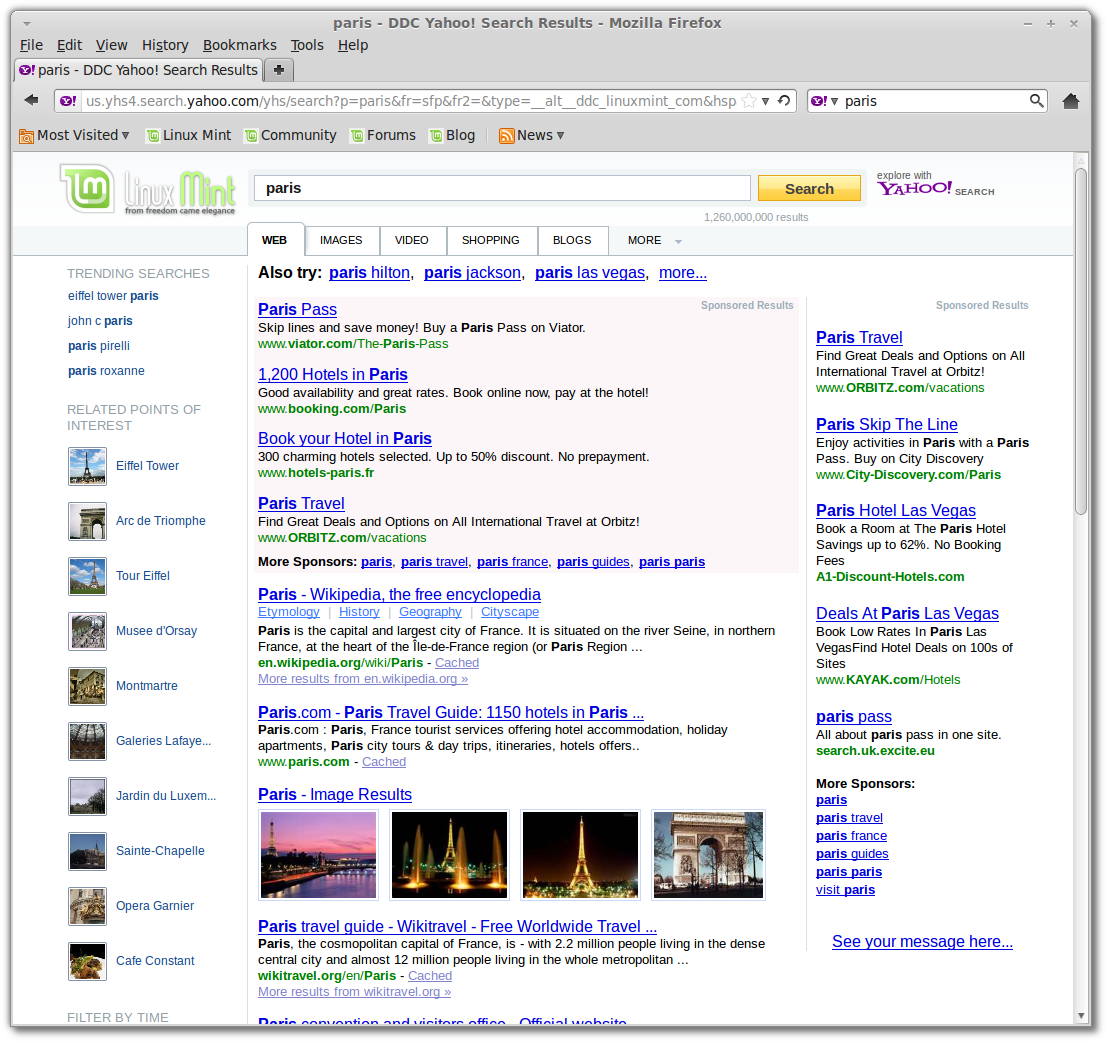
Yahoo is now the default search engine in Linux Mint
Search engines help fund Linux Mint: Search engines share with Linux Mint the revenue generated for them by Linux Mint users. The following search engines share revenue with us: Yahoo!, DuckDuckGo and Amazon. By using these engines for search or to make purchases, you help fund the Linux Mint project.
Easy installation of other engines: Clear explanations and easy instructions are there in Linux Mint for users to understand why some engines aren't installed by default and how to easily install them.

Upstream components

Linux Mint 13 features the following upstream components: Ubuntu 12.04, Linux 3.2, MATE 1.2, Cinnamon 1.4.

dinsdag 24 april 2012

Linux Mint Debian 201204 "stable" is er !

The team is proud to announce the release of LMDE 201204.
This release features three of the best Linux desktops available at the moment: The traditional and functional MATE 1.2 desktop, the innovative and beautiful Cinnamon 1.4 and the lightweight and rock-solid Xfce 4.8.
Both the MATE/Cinnamon and Xfce editions use the MDM display manager. MDM will look familiar to many people, as it brings back GDM 2.20 and all its features: Remote login, configuration tools, fast-user switching, theme-ability, language selection…etc.
Yahoo joins DuckDuckGo and is featured as default in the list of search engines which financially support Linux Mint.
Highlights
  • MATE 1.2
  • Cinnamon 1.4
  • Xfce 4.8
  • MDM
  • Yahoo
  • Kernel 3.2
  • Update Pack 4
  • Hybrid ISO images
If you’re new to LMDE, welcome to Linux Mint Debian!
Screenshots

LMDE 201204 with MATE 1.2 (default environment)

LMDE 201204 with Cinnamon 1.4 (installed by default and available from the login screen)

LMDE 201204 Xfce

Important links

LMDE in brief

  • Linux Mint Debian Edition (LMDE) is a semi-rolling distribution based on Debian Testing.
  • It’s available in both 32 and 64-bit as a live DVD with MATE/Cinnamon or Xfce.
  • The purpose of LMDE is to look identical to the main edition and to provide the same functionality while using Debian as a base.

FAQ

1. Is LMDE compatible with Ubuntu-based Linux Mint editions?
No, it is not. LMDE is compatible with Debian, which isn’t compatible with Ubuntu.
2. Is LMDE fully compatible with Debian?
Yes, 100%. LMDE is compatible with repositories designed for Debian Testing.
3. What is a semi-rolling distribution?
Updates are constantly fed to Debian Testing, where users experience frequent regressions but also frequent bug fixes and improvements. LMDE receives “Update Packs” which are tested snapshots of Debian Testing. Users can experience a more stable system thanks to update packs, or switch their sources to follow Testing, or even Unstable, directly to get more frequent updates.
4. How does LMDE compare to the Ubuntu-based editions?
Pros:
  • You don’t need to ever re-install the system. New versions of software and updates are continuously brought to you.
  • It’s faster and more responsive than Ubuntu-based editions.
Cons:
  • Although it’s using Romeo for unstable packages, LMDE continuously changes as it receives updates and new software. Compared to a frozen version of Linux Mint which changes very little once it’s publicly released, it’s not as stable. Things are likely to break more often but fixes can also come quicker. For this reason, LMDE requires a deeper knowledge and experience with Linux, dpkg and APT.
  • Debian is a less user-friendly/desktop-ready base than Ubuntu. Expect some rough edges.

Additional notes:

  • About the installer: The live installer is developed from scratch with Debian in mind. It’s configurable and it can be re-used by other Debian-based distributions. We noticed a lack in live technologies and in live Debian installers, so we’re happy to take the lead on this. If you’re a developer and you’re interested in using it, have a look at its source repository and don’t hesitate to contact us so we can help you fork it and merge upcoming changes between our two projects.
  • About the media: It comes as a liveDVD. Locales work differently in Debian and the package base requires more space.
  • Dedicated chat room: #linuxmint-debian is open to LMDE users on irc.spotchat.org.

donderdag 5 april 2012

Update Pack 4 is out!

Introduction

Update Pack 4 was released as the “latest” update pack today. If you’re not using Linux Mint Debian, please ignore this post.
In Update Pack 4, the following significant changes occur which might cause regressions on your system:
  1. Gnome 2 gets “upgraded” to Gnome Shell
  2. The Linux kernel is upgraded to version 3.2

Changing your repositories

Please skip this paragraph if you already updated your APT sources for Update Pack 3.
Before you apply the updates for Update Pack 4, make sure you’re pointing to the correct repositories.
Edit your APT sources by running the following command in the terminal:
gksu gedit /etc/apt/sources.list
Within this file, replace the following:
  • Replace security.debian.org with debian.linuxmint.com/latest/security
  • Replace debian-multimedia.org with debian.linuxmint.com/latest/multimedia
Your APT sources, should now look like this:
deb http://packages.linuxmint.com/ debian main upstream import
deb http://debian.linuxmint.com/latest testing main contrib non-free
deb http://debian.linuxmint.com/latest/security testing/updates main contrib non-free
deb http://debian.linuxmint.com/latest/multimedia testing main non-free
Save and close the file.

Using the Update Manager

… to update itself

The Update Manager always updates itself before other packages. If you see an update for “mintupdate-debian“, accept it and wait for the Update Manager to restart itself.

If there’s a new Update Manager available, it will only list itself as an update

… to check your APT sources

At the time of writing this blog post, the latest version of mintupdate-debian is 1.0.5. From this version onwards the Update Manager is able to check your APT sources and tell you if they are properly configured.
  1. Click on the “Update Pack Info” button
  2. Make sure “Your system configuration” shows up as green and doesn’t show any warnings or errors
  3. If you see a warning or an error, follow the instructions given and repeat the process until they’re gone.

Check the system configuration and read the Update Pack information

… to know more about Update Pack 4

In the “Update Pack Info” window, make sure to read all the information related to Update Pack 4. Some of it might be irrelevant to you, but it will only take you a minute and it might you save you hours.

… to upgrade to Update Pack 4

When you’re ready and you know all that there is to know, press the “Install Updates” button.
During the update you’ll be asked a few things. One is quite important.. the new kernel will ask you where to install Grub. Answer with the location of your current Grub menu (which on most systems is “/dev/sda“).

FAQ

Will upgrading to Update Pack 4 mean I will lose Gnome 2?

Yes. But you will also gain access to MATE (which is almost the same as Gnome 2). To install MATE install the package “mate-desktop-environment”.

Is Cinnamon included in Update Pack 4?

Yes. To install it, simply install the package “cinnamon”.

Can I keep Gnome 2 and ignore Update Pack 4?

Although it’s not a long-term solution.. yes, you can. Please read the following blog post for more info on Gnome 2, Update Pack 4 and alternative desktops.

Will LMDE get new ISO images with Update Pack 4?

Yes, in the coming days/weeks, LMDE will be released in two editions featuring Update Pack 4:
  • The traditional XFCE edition
  • The main LMDE edition featuring MATE 1.2 as the default desktop and Cinnamon 1.4 as a secondary desktop. MATE will work with Compiz (also installed by default) and Cinnamon will work in Virtualbox, so you’ll be able to enjoy both desktops and see which one you like best.

maandag 26 maart 2012

LMDE Update Pack 4 and alternatives to Gnome 2

LMDE Update Pack 4 is being prepared and tested at the moment.
Among other important updates this new update pack features:
  • Linux 3.2 kernel
  • MATE 1.2 (with mintMenu and mintDesktop now fully ported to MATE)
  • Cinnamon 1.4
  • KDE 4.7.4
  • Gnome Shell 3.2.2
  • Xfce 4.8
The one thing it’s missing is Gnome 2.
Gnome 2 is, by far, the most used and popular Linux desktop. It’s also the environment we’ve been improving and polishing since we started in 2006 and it’s been a core component of the Linux Mint desktop. Gnome 3 carries the same name but the similarities stop there. It’s a new and radically different desktop and it has very little in common with it.
As you probably know, Gnome 3 conflicts with Gnome 2 and so most distributions lost Gnome 2 about a year ago. Linux Mint 12 lost it in November and LMDE is about to lose it as well with this update pack.
As more and more Gnome 2 users couldn’t use it anymore, many people migrated to other existing desktops such as KDE, Xfce or LXDE. Some people used Gnome Fallback (a Gnome 3 environment which looks like Gnome 2 but which lacks support for Gnome 2 applets and is meant to disappear) and others migrated to a distribution which still had Gnome 2 (Linux Mint 11 or LMDE for instance).
Since that happened, we’ve been worried about the lack of satisfactory alternatives to Gnome 2. Looking towards the future of LMDE and the upcoming Linux Mint 13 release, our top priority was to get to the stage where we can provide our users with something most people would find as good or better than Gnome 2.
We worked extremely hard on Linux Mint 12 and provided an early release of MATE 1.0 and a set of extensions to Gnome Shell called MGSE.
LMDE was frozen at Update Pack 3 with a Gnome 2 desktop until we reached the point we are at today, where both MATE  and Cinnamon are ready.
MATE is basically Gnome 2 renamed. The more the Mate team works on it, the more stable it gets. What it looks like and how it behaves is exactly like Gnome 2. So for most people, this is probably the best alternative.
Cinnamon is a brand new desktop which looks modern (like Shell and Unity) but which works in a similar way than Gnome and Compiz. It’s also a desktop we develop ourselves, which is tailored to the vision we have and so which fits the purpose of Linux Mint perfectly. For this reason Cinnamon is both extremely innovative in the features and polish it gets and very traditional in its layouts and paradigms.
Like Gnome Shell, Cinnamon uses Clutter and needs 3D acceleration. It’s stable and full-featured but it might not work well for you, depending on your graphics card.
With Update Pack 4 LMDE users will gain access to new versions of KDE, Xfce and LXDE, but also for the first time to Gnome Shell, MATE and Cinnamon.
We’re delighted with the current state of these desktops. It’s still too soon to predict which of MATE or Cinnamon will become the most popular desktop in the future, but they both, and in a very different way, represent viable and quality alternatives to Gnome 2.
Last but not least, if you’re still not convinced by the alternatives you can freeze your LMDE system and avoid Update Pack 4 (thus keeping Update Pack 3 and Gnome 2), by pointing to the following repositories:
deb http://packages.linuxmint.com/ debian main upstream import
deb-src http://packages.linuxmint.com/ debian main upstream import
deb http://debian.linuxmint.com/gnome2-frozen testing main contrib non-free
deb http://debian.linuxmint.com/gnome2-frozen/security testing/updates main contrib non-free
deb http://debian.linuxmint.com/gnome2-frozen/multimedia testing main non-free
We hate to put people in a position where they can’t choose, so we will maintain these repositories for a little while, but please consider your options going forward as Gnome 2 will eventually completely disappear.

donderdag 15 maart 2012

Cinnamon 1.4 released


On behalf of the team and all the developers who contributed to this build, I am proud to announce the release of Cinnamon 1.4!
It’s been a month since the 1.3.x releases and we’ve been reading your feedback with a lot of attention. Most of the things you’ve asked made it to this release and today we’re extremely proud to release another major update to the Cinnamon desktop.
Cinnamon 1.4 features a total of 267 commits. Read below for a brief overview of the new features and major improvements.
Have a lot of fun with this new release and don’t hesitate to give us some feedback! Enjoy ;)

The new “Expo” overview

This is something we announced before. We weren’t happy with workspace management and the overview and so we completely changed the way it works. Cinnamon 1.4 comes with two “overview” modes: “Scale” and “Expo”.
“Scale” was present in previous Cinnamon releases and looks like the Compiz Scale plugin, it shows all the windows from your current workspace on the screen and easily allows you to select the one you’re interested in.
The "Scale" overview allows you to select a window
“Expo” is new in Cinnamon 1.4. It zooms out of your current workspace and shows you all the workspaces on your system. From there you can switch to the workspace you want, or even drag and drop windows from one workspace to another. As such, it looks and behaves like the Compiz Expo plugin (from which it gets its name).
The "Expo" overview allows you to manage your workspaces
Expo also introduces a new feature: workspace management. Workspace management is fixed in Compiz (done via configuration) and missing in Gnome Shell (automated by the desktop). In Cinnamon you’re the one who decides how many workspaces you need, when you want to create new ones and when you want to remove the ones you don’t use. If you need a new workspace, just go to Expo and click the button to create a new one. If you want to remove a workspace just click the close button on the workspace and it’s gone…. and whatever you do things don’t change on your behalf. Say you create 5 workspaces, then your Cinnamon has 5 workspaces, whether you use them or not, whether you restart Cinnamon or not, whether you even reboot your computer or not… you’re in charge of your workspace management now.
Note: In future releases you’ll also be able to “name” your workspaces.
By default:
  • CTRL+ALT+UP goes to Expo
  • CTRL+ALT+DOWN goes to Scale
  • The hot corner is on the top-left and calls Expo
  • CTRL+ALT+LEFT/RIGHT switches to the LEFT/RIGHT adjacent workspace
  • CTRL+ALT+SHIFT+LEFT/RIGHT moves the active window to the LEFT/RIGHT adjacent workspace
You can now also configure the location of the hot corner and whether you want it to call Expo or Scale.

New “Settings applet” and “Panel Edit Mode”

The introduction of drag & drop support and movable applets in Cinnamon 1.3 confused a lot of people. Some applets such as the workspace switcher, the window list and the panel launchers, due to their internal design and their user interface, made it extremely hard for people to move them around.
Cinnamon 1.4 introduces a brand new applet called the “Settings applet”.
The new "Settings" applet makes your life a little easier ;)
This applet features:
  • Troubleshooting options (restart cinnamon, looking glass, restore settings to default)
  • Panel Edit Mode
  • Quick access to settings
The quick access to the settings and the troubleshooting options make it easier for novice users to perform complex yet sometimes necessary tasks (restarting Cinnamon without restarting the session, restoring the default settings etc..).
The “Panel Edit Mode” is a new concept in Cinnamon. Applets are not movable anymore. If you want to change their position you need to activate the “Panel Edit Mode”. When this mode is on, the zones of the panel (left, center and right) appear in different colors and all applets are easy to drag & drop. Applets such as the window list, the panel launchers or the workspace switchers, which were hard to move in previous releases, now detect the panel mode and behave differently in Panel Edit Mode to ensure you can move them around with ease.

Localization

Cinnamon is now localized. If you want to monitor or participate in the translation effort, please visit https://translations.launchpad.net/linuxmint/isadora/+pots/cinnamon
Cinnamon 1.4 comes with support for 39 languages and features significant improvements for RTL (right-to-left) languages.
A screenshot of Cinnamon in Arabic. This release is localized in 39 languages and features improved RTL support.

New configuration options

Cinnamon 1.4 adds the following new options:
  • “Only use workspaces on primary monitor”
  • Configurable hot corner position and behaviour
  • Menu hover delay
  • Draggable panel launchers

Menu improvements

The menu received two significant improvements: full drag & drop support, and edition.
You can use drag & drop to:
    • Add applications to the panel launchers from the menu
    • To add/remove applications to/from your favorites
    • To reorder your favorites
By right-clicking the menu and selecting “Edit menu” you can launch a brand new menu editor. “Alacarte” was made compatible with Cinnamon and got fully integrated with the desktop. Using this embedded menu editor you can fine-tune how applications and categories are shown within the menu.
Cinnamon now features a menu editor (forked from Alacarte and fully integrated within Cinnamon)
Other improvements made to the menu:
    • It’s now possible for the menu button to have no icon
    • The menu height was fixed for certain screen resolutions
    • The menu now scrolls when showing the context menu if the menu

Window list improvements

The window list is an essential part of your desktop. In Cinnamon 1.4 we introduced some handy features:
    • You can now reorder windows in the window list via drag & drop.
    • If you drag-over a file on a window in the window list, the window comes to focus (this feature was present in Cinnamon 1.0 and lost along the way, so it’s nice to have it back).
    • You can simply right click any window in the window list and send it to other workspaces, or have it shown on all workspaces.

Applets improvements

Other applets and the applets API itself received the following improvements:
  • Keyboard applet: now has an option to launch the character table
  • Network applet: shows its status in the tooltip
  • Calendar applet: better layout and year selector
  • Sound applet: added limited support for gmusicbrowser
  • Workspace Switcher applet: Mouse scroll support
  • All applets:
    • Use symbolic icons for common applets (better look and feel)
    • More consistent margins and spacing between applets and tray icons (better look and feel)
    • Panel settings and “Add/remove applet” option added in applets context menu
    • Fixed applets menus orientation after moving from one panel to the other

Cinnamon Settings improvements:

  • UUIDs are now visible for applets and extensions
  • Extensions and applets are now sorted by name
  • Allow search on applets

Other notable improvements

  • Context menus now appear on top of the panels and are clickable
  • Fixed a bug which made Cinnamon crash when windows returned NULL as their name (happened when a window was opened and closed very quickly)
  • Fixed a bug which made the Menu label appear as “Me…”
  • Systray icons don’t disappear anymore when applets are moved around
  • Fix for applets getting “shuffled” after drag & drop
  • Remove useless notification when adding/removing favorites
  • A couple of memory leaks fixed
  • Changed default animations and effects (more subtle)

Notes to applet developers

You can now give your applet a custom icon by placing it within your applet. Make sure it’s called “icon.png” and its dimensions are 32x32px. Alternatively you can continue to use the “icon” field in metadata.json to specify a name for the icon, in which case Cinnamon Settings gets the icon from the theme itself.

Notes to extension developers

For all extensions, you need to change the version of Cinnamon in the metadata.json file to “1.4.0″.
If you encounter any problems, please log in the IRC and ask us for help at #linuxmint-dev on irc.spotchat.org

Notes to themes artists

For your theme to fully work with Cinnamon 1.4 you need to add styles for the buttons in “Expo”. Click on the links below to see how this was done in the default theme:
You can also improve your theme by adding some of the improvements the default theme received in 1.4.
This link shows all the changes made to the default theme (cinamon.css) : https://github.com/linuxmint/Cinnamon/commits/master/data/theme/cinnamon.css
Changes made between Cinnamon 1.3.1 and Cinnamon 1.4 include all commits (i.e. changes to the code) made on the 21st of February, as well as 1st, 2nd and 5th of March 2012. If you click on a “commit”, you can see exactly what was changed. As a theme artist, you’re only interested in changes done to “cinnamon.css”.
The following commits in particular are noteworthy:
If you encounter any problems, please log in the IRC and ask us for help at #linuxmint-dev on irc.spotchat.org

vrijdag 9 maart 2012

Linux Mint 12 LXDE released!


The team is proud to announce the release of Linux Mint 12 LXDE.

Linux Mint 12 LXDE
New features at a glance:
For a complete overview and to see screenshots of the new features, visit: “What’s new in Linux Mint 12 LXDE“.
Release notes:
  • Moonlight
  • Upstream issues
To get more information about these issues and their solution, read the “Release notes”.
System requirements:
  • x86 processor
  • 256 MB RAM
  • 3 GB of disk space
  • Graphics card capable of 800×600 resolution
  • CD/DVD drive or USB port
Upgrade instructions:
  • To upgrade from a previous version of Linux Mint follow these instructions.
  • To upgrade from Linux Mint 12 LXDE RC, simply apply any level 1 and 2 updates (if any) available in the Update Manager.
Download:
Md5 sum: 2b54938b8e2f14a5fbca8abc6da86f6a
Torrents: http://torrents.linuxmint.com/torrents/linuxmint-12-lxde-cd-32bit.iso.torrent
HTTP Mirrors:
Enjoy!
We look forward to receiving your feedback. Thank you for using Linux Mint and have a lot of fun with this new release!

maandag 5 maart 2012

LMDE: UPDATE PACK 4 FEEDBACK THREAD

Update Pack 4 is ready for you to test ;)

Sources:

deb http://debian.linuxmint.com/incoming testing main contrib non-free
deb http://debian.linuxmint.com/incoming/security testing/updates main contrib non-free
deb http://debian.linuxmint.com/incoming/multimedia testing main non-free

Rules:

- This thread is for users of the Linux Mint Debian Incoming repository only.
- This thread is for users of the Linux Mint Debian Incoming repository to report problems to the team, so that the team can relay them towards all LMDE users via the Update Manager.
- If you're pointing to the Debian repositories, do not post in here.
- If you're looking for support, answers or information, do not post in here.

When posting about a regression or tricky upgrade, please include the following:

- The package update which is problematic.
- If you can, analyse the cause of the problem and why it is happening.
- If you solved it or found a workaround, please post it as well.
- Include any information you think might help the team solve the problem for others, or that might help others to work around the problem.

Any post not following these rules will be deleted.

The Update Pack repositories were created to help people help each others identify regressions coming from Debian Testing and to give the team the opportunity to fix things at regular intervals. I'd like to thank all the people who will somehow act as guinea pigs while using the Incoming update-packs and thanks to whom users of the Latest update-packs will have an easier life.

Important updates in this Update Pack:

- Gnome 2 is no longer available and replaced with Gnome Shell
- Cinnamon 1.3.1 is being made available from the Linux Mint repositories
- MATE 1.2 is being made available from the Linux Mint repositories
- There's a new Kernel in town (3.2)
- New versions of xorg and impacts on dkms

The purpose of this thread is to do the following:

- Establish whether or not what's in incoming is "stable" enough for us to push it to "latest". So if you find critical problems, do let us know here.
- Gather information about workarounds and tricks so that we can document these and ensure "latest" users have a smoother upgrade than you did with "incoming".

Good luck. Thanks for choosing Mint and thanks for helping out!

maandag 27 februari 2012

Linux Mint 12 LXDE RC released!


The team is proud to announce the release of Linux Mint 12 LXDE RC.

Linux Mint 12 LXDE RC
New features at a glance:
For a complete overview and to see screenshots of the new features, visit: “What’s new in Linux Mint 12 LXDE“.
Release notes:
  • Power manager
  • User manager
  • Auto-login
  • Moonlight
  • Upstream issues
To get more information about these issues and their solution, read the “Release notes”.
System requirements:
  • x86 processor
  • 256 MB RAM
  • 3 GB of disk space
  • Graphics card capable of 800×600 resolution
  • CD/DVD drive or USB port
Bug reports:
Please report any bug you may find here on this blog.
Download:
Md5 sum: 08667152840bdaa6bf43b1dc51a6d4b8
Torrents: http://torrents.linuxmint.com/torrents/linuxmint-12-lxde-cd-32bit-rc.iso.torrent
HTTP Mirrors:
Enjoy!
We look forward to receiving your feedback. Thank you for using Linux Mint and have a lot of fun testing the release candidate!

zaterdag 18 februari 2012

Cinnamon 1.3 is uit


Applets improvements

In Cinnamon 1.3, every panel component is an applet. This means you can remove the default menu or window list and replace them with 3rd party applets.
Another important feature in this release, is the fact that applets can now be dragged and dropped with the mouse and placed wherever you want within the panel(s). So you can now move any part of the panel(s) around and really fine-tune the layout of your desktop to what works best for you.
Your panel, your rules. You can now drag and drop applets and order things in your panel exactly the way you want (The screenshot above is an extreme example of this).

Settings improvements

Cinnamon Settings gained a lot of new features and a lot of new tabs. You can now use it not only to change Cinnamon preferences themselves, but also to configure your fonts, windows, desktop icons, window, cursor, gtk+ themes..etc.
It’s graphical interface was also changed, for the tool to be able to show more information without using more screen estate.
A new UI for Cinnamon Settings, similar to Gnome Settings, which allows the tool to feature more settings and use less space on the screen.

Menu improvements

The menu received the following improvements:
  • New hover delay preference
  • Better icon sizes (crispier icons)
  • Fixed menu size when the number of favorites is high
  • More exhaustive search results

Other notable improvements

  • Panel launchers can now be re-ordered by drag & drop
  • Improved visuals in the default theme
  • Workspace navigation is now possible in scale mode (note that we’re still planning an Expo mode)
  • Multiple bug fixes

Impact for themes artists

If you’re developing a new theme, simply start from scratch using the following tutorial.
If you made a theme for Cinnamon 1.2:
  • You don’t really need to add anything for your theme to work
  • The default theme was slightly improved, in particular it now uses more transitions and shadows, and it defines “ltr” sections for things to look better on Left-to-right locales (Arabic, Hebrew..etc). Have a look at the diff (list of changes) made to cinnamon.css: cinnamon.css.diff
  • PanelMenu isn’t used much anymore. Instead, all core components of the panel now are applets, so make sure your applet section of your theme (at the complete bottom of cinnamon.css) is up to date.
Here’s the Applet style section present in cinnamon.css in Cinnamon 1.3:
CSS:
1
2
3
4
5
6
7
8
9
10
11
12
13
14
15
16
17
18
19
20
21
22
23
24
25
26
27
28
29
30
31
32
33
34
35
36
37
38
/* ===================================================================
* Applets (applet.js)
* ===================================================================*/
.applet-box {
margin: 1px;
padding: 1px;
color: #ccc;
text-shadow: black 0px 0px 2px;
transition-duration: 300;
}
.applet-box:hover {
color: #fff;
}
.applet-label {
padding-left: 4px;
padding-right: 4px;
font-weight: bold;
color: #ccc;
}
.applet-label:hover,
.applet-box:hover > .applet-label {
color: #fff;
text-shadow: white 0px 0px 5px;
}
.applet-icon {
color: #ccc;
}
.applet-icon:hover,
.applet-box:hover > .applet-icon {
color: #fff;
icon-shadow: white 0px 0px 3px;
}
As you can see, it defines a different behavior when the applet is hovered, and it triggers a different behavior on applet-icon and applet-label as well. In the default theme we use this to add text-shadows and icon-shadows to applets when the mouse goes over them.

Impact for applet developers

Unless your applet is tightly linked to our code or referring to other panel components, it should continue to work in Cinnamon 1.3 the same way it did in Cinnamon 1.2.

Impact for extension developers

For all extensions, you need to change the version of Cinnamon from 1.2 to 1.3 in the metadata.json file.
If your extension refers to any part of Cinnamon that is a panel component (for instance: menu.js, windowlist.js, dateMenu.js, status/bluetooth.js, status/keyboard.js….etc), it will no longer work in Cinnamon 1.2. All these components were migrated to applets and are now located in /usr/share/cinnamon/applets.
Extensions which design was to modify the behavior of a particular applet component (for instance: an extension which hides the bluetooth icon in the panel) should be abandoned. Applets can be removed, and rather than modifying them using extensions, developers should write their own modified versions of them as applets.
Extensions which design was to add new content to the panel (for instance: the weather extension), will continue to work.. but we STRONGLY recommend they get migrated to applets. Extensions are stuck to a particular place in the panel and users won’t be able to drag and drop them and move them around like they do with other applets.
If your extension has nothing to do with panels, then it should continue to be an extension.
If you encounter any problems, please log in the IRC and ask us for help at #linuxmint-dev on irc.spotchat.org

vrijdag 3 februari 2012

Linux Mint 12 KDE stable is er!


The team is proud to announce the release of Linux Mint 12 KDE.

Linux Mint 12 KDE
New features at a glance:
For a complete overview and to see screenshots of the new features, visit: “What’s new in Linux Mint 12 KDE“.
Release notes:
  • Moonlight
  • Upstream issues
To get more information about these issues and their solution, read the “Release notes”.
System requirements:
  • x86 processor (Linux Mint 64-bit requires a 64-bit processor. Linux Mint 32-bit works on both 32-bit and 64-bit processors).
  • 512 MB RAM (1GB recommended for a comfortable usage).
  • 5 GB of disk space
  • Graphics card capable of 800×600 resolution
  • DVD-ROM drive or USB port
Upgrade instructions:
  • To upgrade from a previous version of Linux Mint follow these instructions.
  • To upgrade from Linux Mint 12 KDE RC, simply apply any level 1 and 2 updates (if any) available in the Update Manager.
Download:
Md5 sum:
  • 32-bit: d667a7cfbbdf965b07df7edcc2dbfb98
  • 64-bit: 8173538eab3c060d85e0e0b74eaf11f3
Torrents:
HTTP Mirrors for the 32-bit ISO:
HTTP Mirrors for the 64-bit ISO:
Enjoy!
We look forward to receiving your feedback. Thank you for using Linux Mint and have a lot of fun with this new release!