donderdag 1 november 2012

Linux Mint Store

In partnership with CompuLab, ThinkPenguin, OSDisc and HELLOTUX, we are proud to announce a new section on our website: The Linux Mint Store.

All the Mint products sold by our partners are now browsable on the website
As a GNU/Linux distribution, we specialize in distributing, packaging and developing software. We’re extremely focused and we do not produce, sell or ship anything. Thanks to a network of strong and reliable partners we are now able to provide Linux Mint products to the community while creating another source of income for the distribution.
Items in the Linux Mint store link to our partners websites where purchases of the items can be made.
I’d like to thank all our partners for the quality of their work and of our relationship with them and all the people who enjoy these items and whose purchases contribute to support our project.
You can visit the store by following this link: http://www.linuxmint.com/store.php

zondag 28 oktober 2012

Linux Mint 11 Katya reaches end of life

Linux Mint 11 Katya
Linux Mint 11 Katya reached end of life. This release was based on Ubuntu 11.04.
Repositories will remain open but no more updates or security fixes will be made available. Users of Linux Mint 11 Katya are asked to migrate to “Linux Mint 13 LTS Maya – MATE Edition” (which will be supported until April 2017).

zaterdag 22 september 2012

Cinnamon 1.6 in Romeo

Introduction
Cinnamon 1.6 (along with Muffin 1.1.0 and Nemo 1.0.1) was released yesterday. You can read the release announcement and an overview of the new features at: http://cinnamon.linuxmint.com/?p=207

These technologies are brand new and we do not recommend you upgrade to them. They were however added to the Romeo section of the LMDE and Linux Mint 13 repositories for Cinnamon enthusiasts to get an early taste of what is coming next. As we receive more feedback and bug reports, the Cinnamon 1.6 branch will mature, with a series of small point releases (1.6.1, 1.6.2 etc..) and will eventually replace Cinnamon 1.4.
Warnings
Be aware that Cinnamon 1.6.0 and Nemo 1.0.1 are brand new:
  • Translations in 1.6.0 are only complete for French, German and Dutch (click here for the dev. status on translations)
  • Cinnamon 1.6 introduces many new features and 1.6.0 is the first public release, so we’re expecting bugs :)
  • Most themes aren’t compatible with Cinnamon 1.6 yet. If you upgrade to Cinnamon 1.6, we recommend you use the default “cinnamon” theme.
  • Nemo 1.0.1 is stable but it comes without support for most popular extensions (dropbox, extract-here..etc..)
  • Nemo 1.0.1 isn’t supported by most themes out there and doesn’t support Nautilus themes, so it won’t integrate with your theme as nicely as Nautilus does.
How to enable Romeo
To enable Romeo, click on Menu->Preferences->Software Sources. Then tick the “Unstable packages (Romeo)” checkbox.

Note: Make sure to disable Romeo after you upgraded Cinnamon. We use Romeo internally to test packages before they reach the repositories so pointing to it is usually a bad idea.
How to upgrade to Cinnamon 1.6
Once you’ve enabled Romeo, launch the Update Manager and click on “Refresh”.

Select the Muffin and Cinnamon packages as illustrated above and click the “Install Updates” button.
When you’re finished, disable Romeo in the Software Sources, terminate your session and log in Cinnamon again.
You can run “cinnamon –version” in a terminal to make sure you’re using 1.6.0.
Nemo 1.0.1
Using Romeo you can also install the “nemo” package.
Nemo will replace Nautilus in Cinnamon and Linux Mint going forward. This project was announced at http://cinnamon.linuxmint.com/?p=198
Note: Although Nemo is Cinnamon’s official file browser, Cinnamon does not depend on it, so you can continue to use Cinnamon with Nautilus, Marlin or any other file browser.

maandag 17 september 2012

LMDE Update Pack 5

Current Status

  • It is not safe to upgrade any package unless your mirror points to UP5
    • Here is the current status of the LMDE mirrors:
      • debian.linuxmint.com (USA): UP5
      • http://debian.lth.se (Sweden): UP5
      • http://mirror.rts-informatique.fr (France): UP5
    • To change which mirror you’re pointing to:
      • make sure “mint-debian-mirrors” is installed
      • open a terminal and run the following command: mint-choose-debian-mirror
  • Make sure to read http://debian.linuxmint.com/latest/update-pack.html
  • If you experience issues or if you’re going through the update at the moment, don’t hesitate to connect to the IRC chatroom (irc.spotchat.org, #linuxmint-debian)

Introduction

Update Pack 5 was released as the “latest” update pack today. If you’re not using Linux Mint Debian, please ignore this post.

Using the Update Manager

… to update itself

The Update Manager always updates itself before other packages. If you see an update for “mintupdate-debian“, accept it and wait for the Update Manager to restart itself.

… to check your APT sources

  1. Click on the “Update Pack Info” button
  2. Make sure “Your system configuration” shows up as green and doesn’t show any warnings or errors
  3. If you see a warning or an error, follow the instructions given and repeat the process until they’re gone.

… to know more about Update Pack 5

In the “Update Pack Info” window, make sure to read all the information related to Update Pack 5. Some of it might be irrelevant to you, but it will only take you a minute and it might you save you hours.

… to upgrade to Update Pack 5

When you’re ready and you know all that there is to know, press the “Install Updates” button.
During the update you’ll be asked a few things. One is quite important.. the new kernel will ask you where to install Grub. Answer with the location of your current Grub menu (which on most systems is “/dev/sda“).

FAQ

Will LMDE get new ISO images with Update Pack 5?
Yes, in the coming weeks/months, the following editions will be released either with Update Pack 5 or Update Pack 6 (depending on whether UP6 is a quick/short follow-up update-pack or not):
  • Cinnamon
  • MATE
  • Xfce

dinsdag 4 september 2012

Nemo, Cinnamon 1.6 and MATE 1.4


I’m taking this opportunity to relay two pieces of Cinnamon news to the Linux Mint community.
Cinnamon 1.6 preview
The upcoming Cinnamon 1.6 was given a quick preview at http://cinnamon.linuxmint.com/?p=195

Nemo
Nemo was announced as the new file browser for Cinnamon: http://cinnamon.linuxmint.com/?p=198

MATE 1.4
There was also news coming from MATE. In case you missed their announcement during the holidays. MATE 1.4 was released: http://mate-desktop.org/2012/07/30/mate-1-4-released/

woensdag 29 augustus 2012

Linux Mint 14 “Nadia”

Linux Mint 14 will be named “Nadia” and should be available at the end of November 2012.
In Kim Stanley Robinson’s Mars Trilogy, Nadezhda “Nadia” Chernyshevski is Maya’s best friend.
Nadia is pronounced NAH-d’-yah. It is the English form of Nadya, which itself is the pet form of Nadezhda and is Russian for “hope”. It’s also a variant of Nadiyya which, in Arabic, means “moist, tender, delicate”.
Linux Mint 14 “Nadia” will feature the following editions:
  • Cinnamon
  • MATE
  • KDE
  • Xfce

dinsdag 31 juli 2012

LMDE’s “gnome2-frozen” repository discontinued

In the latest Update Pack to Linux Mint Debian (UP4) released in March, MATE 1.2 and Cinnamon 1.4 were made available as well as an option called “gnome2-frozen” which allowed users to stick to Gnome 2 and skip the Update Pack altogether.
Moving forward and in preparation for Update Pack 5, this repository is now discontinued.
An rsync archive was made available for users and mirrors interested in acquiring a copy of the content of Update Pack 3. This archive will remain open for a couple of weeks and is available at the following address:
  • rsync://debian.linuxmint.com::gnome2-frozen
This is our last goodbye to Gnome 2, a desktop we enjoyed working with since 2006 and which we can unfortunately no longer provide. Although there are still a few technologies which weren’t ported to newer desktops, we’re really proud of the work done by the MATE team and the results we’re getting with Cinnamon. Desktops like KDE and Xfce have also matured a lot and new solutions such as Shell and Unity provide additional alternatives to users.
The loss of Gnome 2 was a traumatic experience not only for users but for desktop distributions. Most of our focus in Linux Mint 12 and Linux Mint 13 went towards making this transition as smooth as possible. With Linux Mint 14 we’ll see the focus switch back towards iterative development/innovations and incremental improvements. Cinnamon will continue to improve and gain momentum but the focus will switch back to developing tools and improving the Linux Mint desktop experience itself, across all editions.

woensdag 25 juli 2012

Linux Mint 13 “KDE” released!


The team is proud to announce the release of Linux Mint 13 KDE.

Linux Mint 13 KDE
New features at a glance:
For a complete overview and to see screenshots of the new features, visit: “What’s new in Linux Mint 13 KDE“.
Important info:
  • Quicktime playback in Firefox
  • Boot hangs on systems with b43 wireless cards
  • Moonlight
Make sure to read the “Release Notes” to be aware of important info or known issues related to this release.
System requirements:
  • x86 processor (for both 32 & 64-bit versions)
  • x86_64 compatible processor (for the 64-bit version)
  • 1 GB of system memory (RAM)
  • 5 GB of disk space for installation
  • Graphics card capable of 800×600 resolution
  • CD-ROM drive or USB port
Upgrade instructions:
  • To upgrade from a previous version of Linux Mint follow these instructions.
  • To upgrade from the RC release, simply apply any level 1 and 2 updates (if any) available in the Update Manager.
Download:
Md5 sum:
  • 32-bit: ec735ea0345c07b9b28ea471eef70dcd
  • 64-bit: 5cc25450a0b401b939f6e274c4fdb186
Torrents:
HTTP Mirrors for the 32-bit DVD ISO:
HTTP Mirrors for the 64-bit DVD ISO:

zaterdag 21 juli 2012

Linux Mint 13 “Maya” Xfce released!


The team is proud to announce the release of Linux Mint 13 Xfce.

Linux Mint 13 Xfce
New features at a glance:
For a complete overview and to see screenshots of the new features, visit: “What’s new in Linux Mint 13 Xfce“.
Important info:
  • Xfce trash in live mode
  • Boot hangs on systems with b43 wireless cards
  • Moonlight
Make sure to read the “Release Notes” to be aware of important info or known issues related to this release.
System requirements:
  • x86 processor (for both 32 & 64-bit versions)
  • x86_64 compatible processor (for the 64-bit version)
  • 384 MB of system memory (RAM)
  • 5 GB of disk space for installation
  • Graphics card capable of 800×600 resolution
  • CD-ROM drive or USB port
Upgrade instructions:
  • To upgrade from a previous version of Linux Mint follow these instructions.
  • To upgrade from the RC release, simply apply any level 1 and 2 updates (if any) available in the Update Manager.
Download:
Md5 sum:
  • 32-bit: 721036768e95793ade27935038499e82
  • 64-bit: b2b9d300c2f0e9fe85000313edc2aa81
Torrents:
HTTP Mirrors for the 32-bit DVD ISO:
HTTP Mirrors for the 64-bit DVD ISO:
Enjoy!

vrijdag 13 juli 2012

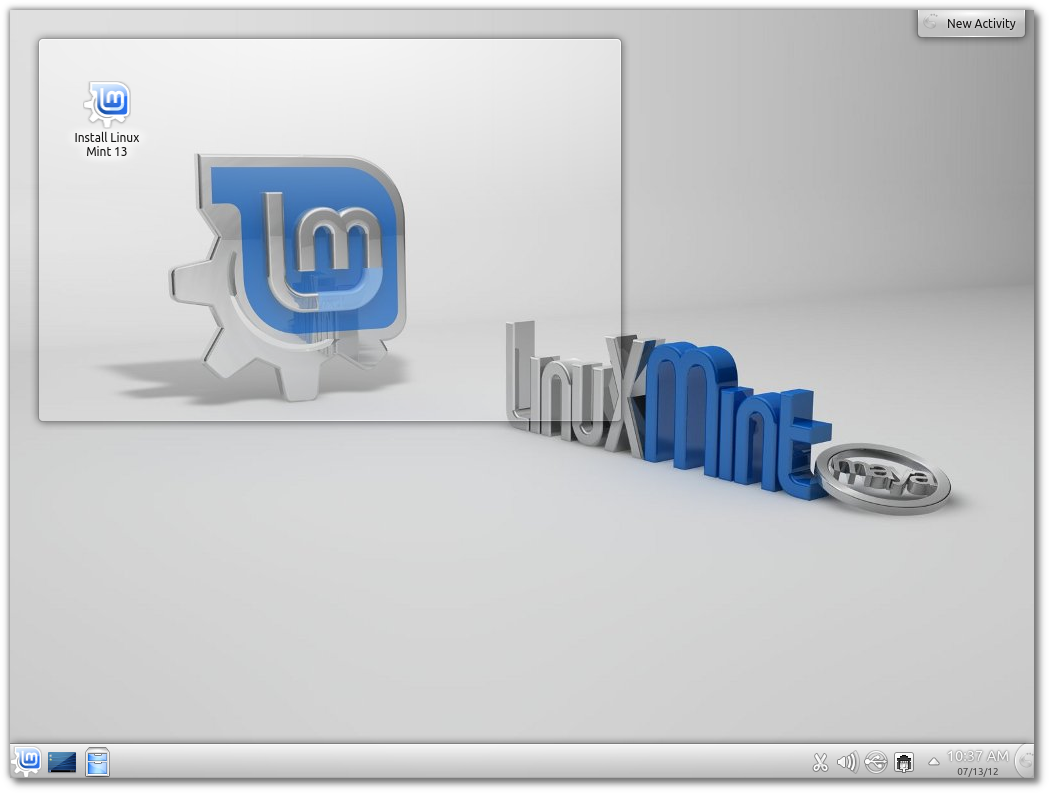
Linux Mint 13 “Maya” KDE RC released!

Het team stelt met trots de release van Linux Mint 13 KDE RC voor.

Linux Mint 13 KDE

New features at a glance:
For a complete overview and to see screenshots of the new features, visit: “What’s new in Linux Mint 13 KDE“.
Important info:
  • Quicktime playback in Firefox
  • Boot hangs on systems with b43 wireless cards
  • Moonlight
Make sure to read the “Release Notes” to be aware of important info or known issues related to this release.
System requirements:
  • x86 processor (for both 32 & 64-bit versions)
  • x86_64 compatible processor (for the 64-bit version)
  • 512 MB of system memory (RAM)
  • 5 GB of disk space for installation
  • Graphics card capable of 800×600 resolution
  • CD-ROM drive or USB port
Download:
Md5 sum:
  • 32-bit: 5e073bc7b5207cc90078830e89b8d750
  • 64-bit: 29ce72b534edd404c616320b26cffb51
Torrents:
HTTP Mirrors for the 32-bit DVD ISO:
HTTP Mirrors for the 64-bit DVD ISO:

zaterdag 30 juni 2012

Linux Mint 13 “Maya” Xfce RC released!

The team is proud to announce the release of Linux Mint 13 Xfce RC.

Linux Mint 13 Xfce
New features at a glance:
For a complete overview and to see screenshots of the new features, visit: “What’s new in Linux Mint 13 Xfce“.
Important info:
  • mintMenu in Xfce
  • Xfwm margins
  • Xfce trash in live mode
  • Boot hangs on systems with b43 wireless cards
  • Moonlight
Make sure to read the “Release Notes” to be aware of important info or known issues related to this release.
System requirements:
  • x86 processor (for both 32 & 64-bit versions)
  • x86_64 compatible processor (for the 64-bit version)
  • 256 MB of system memory (RAM)
  • 5 GB of disk space for installation
  • Graphics card capable of 800×600 resolution
  • CD-ROM drive or USB port
Download:
Md5 sum:
  • 32-bit: e837b79e7f6c2550fd4d74c7d241b2d0
  • 64-bit: 2789901ecc92e03cf2bfc974a68ce978
Torrents:
HTTP Mirrors for the 32-bit DVD ISO:
HTTP Mirrors for the 64-bit DVD ISO:
Enjoy!
We look forward to receiving your feedback. Thank you for using Linux Mint and have a lot of fun testing the release candidate!

zondag 10 juni 2012

Mint install from usb

If you want to try MINT on your computer without modifying anything to the already installed system, you can use the Live CD/DVD images that Linux Mint uses to distribute its is version of Linux. Live_CD . As the inclusion of cd/dvd drives in lots of computers have been discontinued, eg netbooks etc It makes sense to use a flash/usb drive instead of the cd.
If you want to have certain features retained between reboots then you need to look at persistence.
This is what makes using a live image far more useful the most users, it allows you to keep your bookmarks and documents and to some degree install new programs that will be saved between boots. Persistence must be saved to a flash or hard drive so why not do away with the live cd and have have the USB load the iso image and automatically load the settings from the persistence file.
You'll need your live USB to install Mint on some of the other howto's on this site.
Form windows you need to download the ISO file of your choice form http://www.linuxmint.com/download.php
Then to write the iso to your flash drive download
From Linux Mint follow this supplement
1. http://unetbootin.sourceforge.net/
OR
2. http://www.pendrivelinux.com/yumi-multiboot-usb-creator/
For this tutorial we will use UNETBOOTIN
Plug in your usb remember to back up anything you need to keep. Find the USB drive and make a note of the drive letter. find
 
Right click and and format the drive, are you sure you have the correct usb drive. format
 
Are you ready to format drive - last chance - make sure its the right one. are you sure
 
Once the format is complete start Unetbootin, you will see there are several options; but it is quite simple to use.
unetbootin
 
1st Make sure you have the correct usb drive selected it will automatically try to select any plugged in usb/flash drives.

2nd Chose the iso use want to use – here we are using the smaller version (no codecs or libre office etc) of mint for this tutorial that you should have previously downloaded.

3rd Add persistence, remember 1000mb = 1 Gigabyte, the larger size of persistence file the longer it will take to make the file. You should make a minimum size of 1000 mb or larger for normal day to day use.
 
Obviously this depends on the size of flash stick you are using.
 
Once you are happy with your choices press OK to start the writing process.
setup unet
 

Making the usb , copying the files from the iso to the usb.

making
Making the usb, making the required files and adding persistence this make take some time.
make
Ready to try
ready
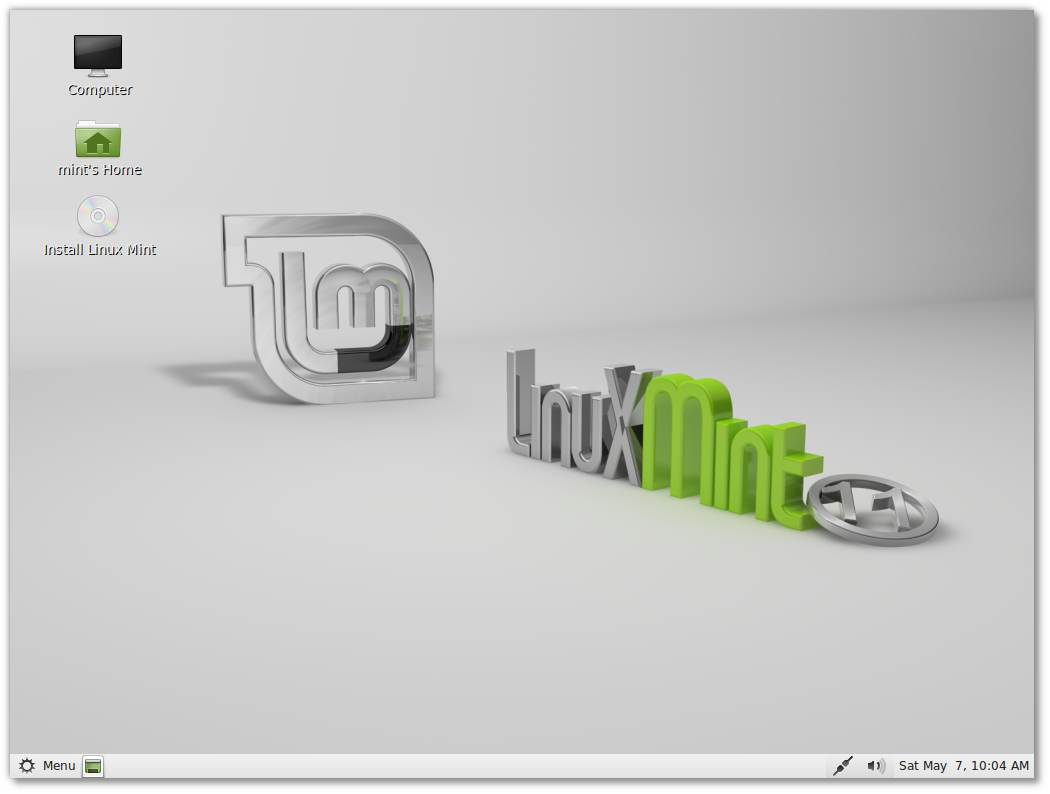
Mint 11 live desktop, here you can see that we are installing from this live usb to a harddisk.
Mint 11 live desktop

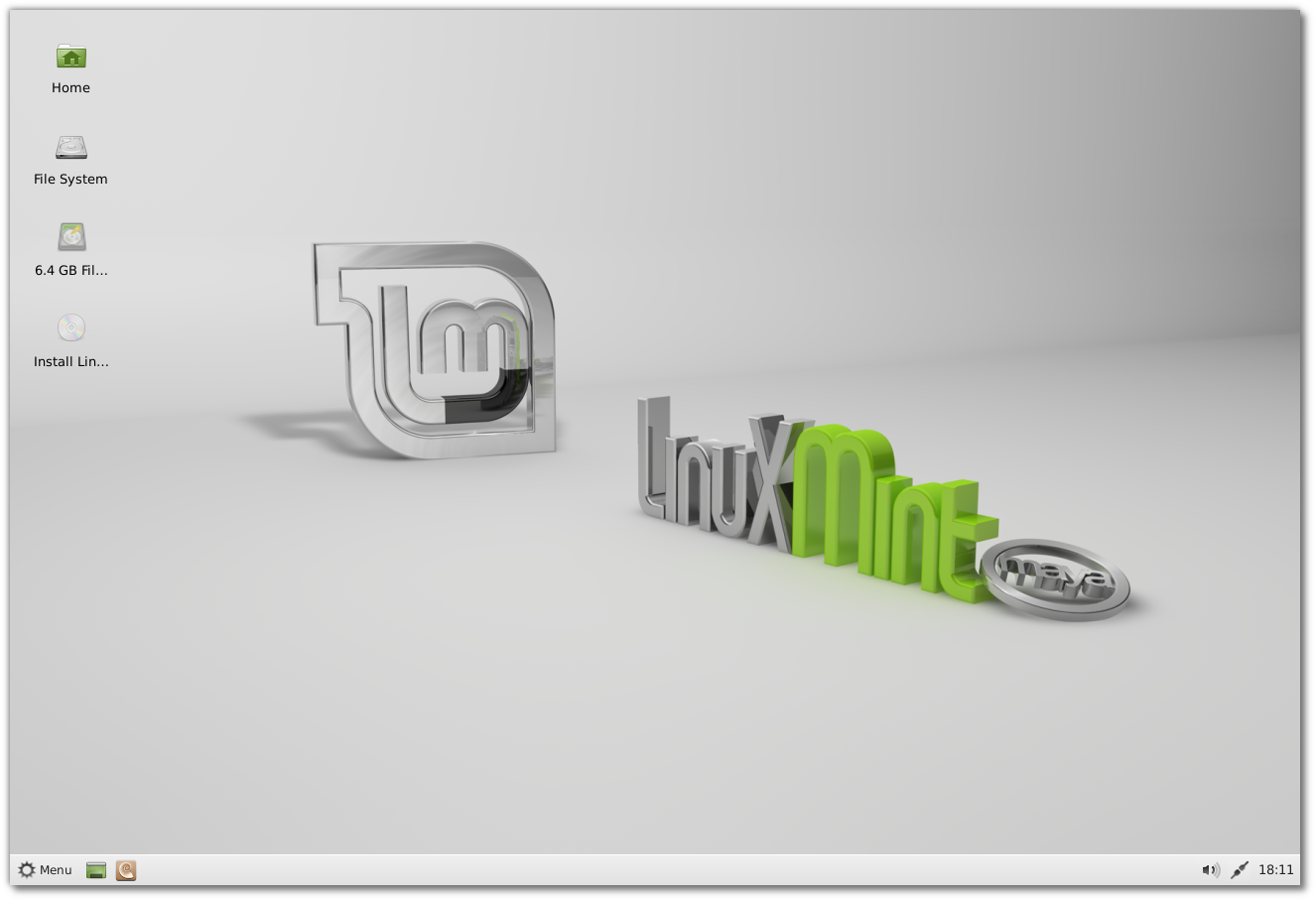
This is a  LXDE edition of the Mint 12 Live desktop that uses the Lightweight X11 Desktop Environment (LXDE)


Mint 12 live desktop Mint 12 live desktop
 
After you have your livecd setup with new wallpapers, bookmarks and such its a good idea to back up the casper-rw file from your usb stick. If you keep this backup relatively up to date and you have problems booting from the stick, delete the casper-rw file and check weather the stick will boot, if it does copy the backup onto the stick and you have your system up and running in no time.
 
 
If you have to remake the Live USB just make a small persistence file then overwrite with the backup.
livecd
There is a good write up of persistence at what-is-persistent-linux