woensdag 23 mei 2012

Linux Mint 13 “Maya” released!

The team is proud to announce the release of Linux Mint 13 “Maya”.
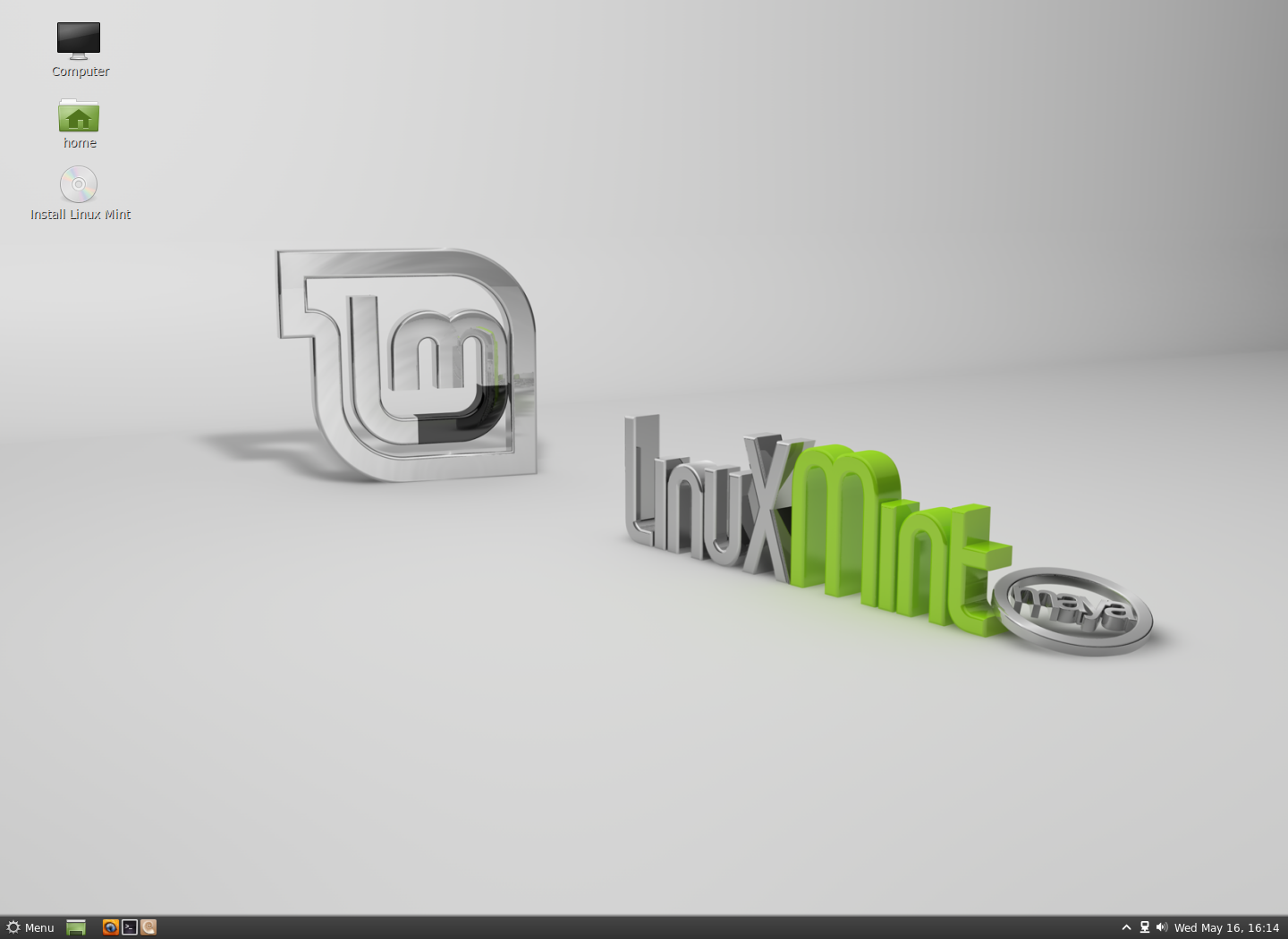
Available in two editions, Linux Mint 13 features the choice between a productive, stable and mature MATE 1.2 desktop and the brand new modern-looking and exciting Cinnamon 1.4. These two desktops are among the best available, they’re perfectly integrated within Linux Mint and represent great alternatives to Gnome 2 users. Linux Mint 13 is also an LTS (Long Term Support) release and it will be supported until April 2017.
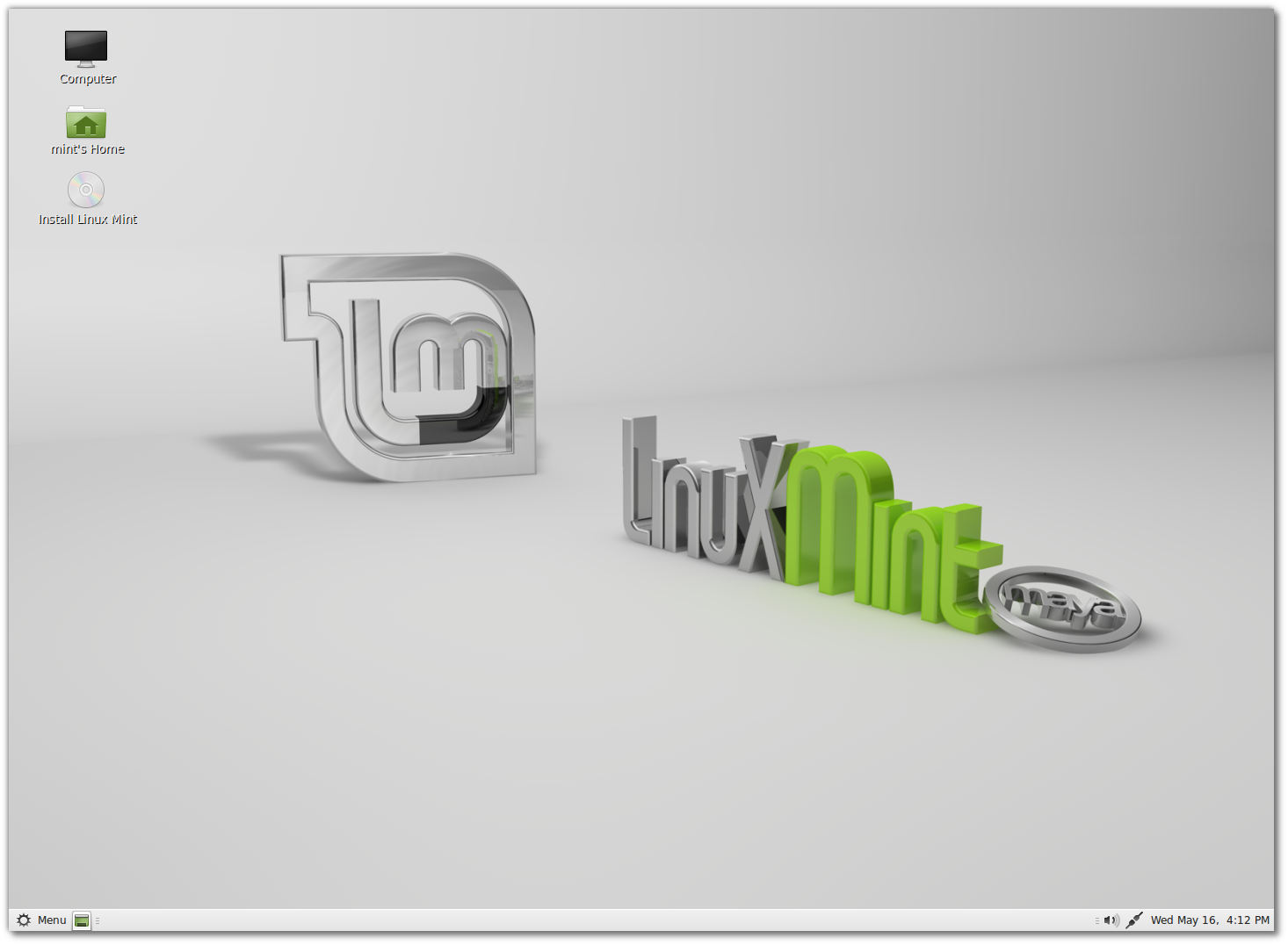
MATE Edition Cinnamon Edition

New features at a glance:
For a complete overview and to see screenshots of the new features, visit: “What’s new in Linux Mint 13“.
Important info:
  • Boot hangs on systems with b43 wireless cards
  • 64-bit only for Mint4win
  • Windows popping behind the installer in MATE edition
  • Desktop icons in Cinnamon
Make sure to read the “Release Notes” to be aware of important info or known issues related to this release.
System requirements:
  • x86 processor (Linux Mint 64-bit requires a 64-bit processor. Linux Mint 32-bit works on both 32-bit and 64-bit processors).
  • 512 MB RAM (1GB recommended for a comfortable usage).
  • 5 GB of disk space
  • Graphics card capable of 800×600 resolution
  • CD/DVD drive or USB port
Upgrade instructions:
  • To upgrade from a previous version of Linux Mint follow these instructions.
  • To upgrade from the RC release, simply apply any level 1 and 2 updates (if any) available in the Update Manager.
Download:
Md5 sum:
  • MATE 32-bit: 43ca0be4501b9d1a46fea25ec2cd556e
  • MATE 64-bit: 2d84f671ad77a8019dfa6e1d00572d82
  • Cinnamon 32-bit: 913fd6c76730dac0aff87d565cbdb737
  • Cinnamon 64-bit: e0f3dbee947630d1eada01a3583d3b96
Torrents:
HTTP Mirrors for the MATE 32-bit DVD ISO:
HTTP Mirrors for the MATE 64-bit DVD ISO:
HTTP Mirrors for the Cinnamon 32-bit DVD ISO:
HTTP Mirrors for the Cinnamon 64-bit DVD ISO:
Alternative downloads:
No-codecs images:
Distributors and magazines in Japan, USA and countries where distributing media codecs is problematic can use the “No Codecs” ISO images. These images are available for both the MATE and Cinnamon editions, in 32-bit and 64-bit at the following address:
http://www.linuxmint.com/download.php
OEM images:
Manufacturers can pre-install Linux Mint on their computers using the OEM installation images. These images will be made available next week, for both the MATE and Cinnamon edition in 64-bit at the following address:
http://www.linuxmint.com/download.php
700MB CD images:
Because of the size of the content, and the fact that a vast majority of systems nowadays can either boot from DVDs or from USB, Linux Mint no longer provides images which fit in 700MB CDs. It is however possible and easy to to modify ISO images. By removing packages such as Java, Mono, LibreOffice, Gimp..etc.. Linux Mint ISOs can be made to fit within 700MB. For instructions on how to remaster the Linux Mint ISOs, please read the following tutorial:
http://community.linuxmint.com/tutorial/view/918
Enjoy!
We look forward to receiving your feedback. Thank you for using Linux Mint and have a lot of fun with this new release!

vrijdag 18 mei 2012

Debian Administration Handbook

You can order it in book form or download in various electronic form. You can find the news here:
http://debian-handbook.info/2012/the-de ... available/

The download is a bit hard to find at first glance. You can find it here:
http://debian-handbook.info/get/now/

Also available as a html webpage:
http://static.debian-handbook.info/browse/stable/

And at least on sid as a Debian package:
$ apt-cache search debian-handbook
debian-handbook - reference book for Debian users and system administrators

Code: Select all
    # apt-get install debian-handbook
    Reading package lists... Done
    Building dependency tree     
    Reading state information... Done
    The following NEW packages will be installed:
      debian-handbook
    0 upgraded, 1 newly installed, 0 to remove and 19 not upgraded.
    Need to get 22.0 MB of archives.
    After this operation, 23.9 MB of additional disk space will be used.


Once installed it can be opened in a browser /usr/share/doc/debian-handbook/html/index.html

donderdag 17 mei 2012

Linux Mint 13 “Maya” RC released!


The team is proud to announce the release of Linux Mint 13 “Maya” RC.
Available in two editions, Linux Mint 13 features the choice between a productive, stable and mature MATE 1.2 desktop and the brand new modern-looking and exciting Cinnamon 1.4. These two desktops are among the best available, they’re perfectly integrated within Linux Mint and represent great alternatives to Gnome 2 users. Linux Mint 13 is also an LTS (Long Term Support) release and it will be supported until April 2017.


MATE Edition Cinnamon Edition

New features at a glance:
For a complete overview and to see screenshots of the new features, visit: “What’s new in Linux Mint 13“.
Important info:
  • Windows popping behind the installer
  • Mint4Win
  • Desktop icons in Cinnamon
Make sure to read the “Release Notes” to be aware of important info or known issues related to this release.
System requirements:
  • x86 processor (Linux Mint 64-bit requires a 64-bit processor. Linux Mint 32-bit works on both 32-bit and 64-bit processors).
  • 512 MB RAM (1GB recommended for a comfortable usage).
  • 5 GB of disk space
  • Graphics card capable of 800×600 resolution
  • CD/DVD drive or USB port
Bug reports:
Please report any bug you may find by leaving a comment on this blog.
Download:
Md5 sum:
  • MATE 32-bit: 3c86a1f6d203a953ddd62f974707dad5
  • MATE 64-bit: 776a2e820362833cdbb056c035a5f2c1
  • Cinnamon 32-bit: aa1af21ba8196148a801196ec68dae87
  • Cinnamon 64-bit: 3786b11fa3a28dcfc3941295e872c4ce
Torrents:
HTTP Mirrors for the MATE 32-bit DVD ISO:
HTTP Mirrors for the MATE 64-bit DVD ISO:
HTTP Mirrors for the Cinnamon 32-bit DVD ISO:
HTTP Mirrors for the Cinnamon 64-bit DVD ISO:
Enjoy!
We look forward to receiving your feedback. Thank you for using Linux Mint and have a lot of fun testing the release candidate!


New features in Linux Mint 13

With the rock-solid MATE 1.2 and the brand new Cinnamon 1.4, Linux Mint provides a choice between two of the most popular Linux desktops. Whether you're looking for a mature and productive environment, or you're interested in being part of an exciting new adventure, we hope you enjoy your experience with Linux Mint 13. Both the MATE and the Cinnamon edition were built with the highest quality of integration and will be supported until April 2017.

MATE 1.2


Linux Mint 13 "Maya" MATE Edition
Until Linux Mint 11, the main edition featured a "Gnome 2" desktop. In the last two years, Gnome 2 was discontinued and abandoned by its development team and a majority of Linux distributions. Developers in the Linux community gathered and joined forces within a new project, called MATE, to save the Gnome 2 desktop. The latest Gnome 2 codebase was renamed and MATE now provides the same desktop as Gnome 2 under a different name.
Pros:
  • MATE is stable and it works on all computers
  • MATE is among the most productive and easy to use desktops available.
  • MATE continues where Gnome 2 left off and introduces its own incremental improvements.
  • MATE comes with support for mintMenu, mintDesktop, Compiz and everything that made Gnome 2 the most popular Linux desktop.
  • MATE is built with GTK2, it features more themes and integrates with more applications than any other desktop.
Cons:
  • Some parts of Gnome 2 were not migrated to MATE yet and a few aspects such as Bluetooth support might not work as well as they did with Gnome 2.

Cinnamon 1.4


Linux Mint 13 "Maya" Cinnamon Edition
Cinnamon was born for the same reasons as MATE. Gnome 2 was one of the core components of Linux Mint, and Gnome 3 lacked the features and design of a suitable alternative. Linux Mint started by developing the extra features it needed on top of Gnome 3 and eventually started to develop its own environment called Cinnamon.
Both Linux Mint and the MATE project came up with really good alternatives to Gnome, but in completely different ways.
Cinnamon is built on Clutter and Gnome 3. It's a modern-looking environment with a traditional and familiar desktop. It features compositing, animations and some unique innovations but it relies on 3D acceleration, lacks some of the features found in Gnome 2 and isn't yet compatible with every graphics card available on the market.
Pros:
  • Cinnamon is among the sleekest and most modern looking environments
  • Cinnamon features innovative features and emphasis on productivity with traditional desktop metaphors
  • Cinnamon is built on rapid technologies and its development pace is really fast
  • The Cinnamon community is very active, and produces a lot of new themes and applets
Cons:
  • Cinnamon requires 3D acceleration and might not work well for you, depending on your graphics card and/or drivers.
  • Cinnamon is brand new and unfortunately not yet as stable as more mature and established desktops such as MATE, KDE or Xfce.
  • Cinnamon relies on Gnome 3 and Clutter, which are also both brand new and going through rapid transformations.

MDM


MDM stands for "MDM Display Manager" :)
MDM is a new Display Manager, which code is based on GDM 2.20. It provides graphical configuration tools, themeability, remote, automatic and timed login, event scripting, language selection and it comes with more features than any other Display Manager currently available.

MDM comes with a lot of features and configuration options

Artwork improvements

Linux Mint 13 features the latest Mint-X and Mint-Z themes and better support for GTK3.

The Mint-Z desktop theme
Backgrounds: The default background is complemented by a collection of beautiful photographs from an Irish artist called "masterbutler".

A collection of beautiful photographs from masterbutler
Yahoo: Linux Mint switches to Yahoo as the default search engine for the USA, Canada, the UK, Ireland, Germany, France, Italy and Spain. Yahoo is the 2nd biggest search engine in the World, and the first major search engine to share revenue with Linux Mint. The results page is full of features, it comes with a nice layout, images, videos and blogs search, points of interest, time filters and cached results. Underneath the interface, Yahoo comes with a strong network of advertisers and its addition represents a huge opportunity and an additional source of income for Linux Mint.

Yahoo is now the default search engine in Linux Mint
Search engines help fund Linux Mint: Search engines share with Linux Mint the revenue generated for them by Linux Mint users. The following search engines share revenue with us: Yahoo!, DuckDuckGo and Amazon. By using these engines for search or to make purchases, you help fund the Linux Mint project.
Easy installation of other engines: Clear explanations and easy instructions are there in Linux Mint for users to understand why some engines aren't installed by default and how to easily install them.

Upstream components

Linux Mint 13 features the following upstream components: Ubuntu 12.04, Linux 3.2, MATE 1.2, Cinnamon 1.4.

dinsdag 24 april 2012

Linux Mint Debian 201204 "stable" is er !

The team is proud to announce the release of LMDE 201204.
This release features three of the best Linux desktops available at the moment: The traditional and functional MATE 1.2 desktop, the innovative and beautiful Cinnamon 1.4 and the lightweight and rock-solid Xfce 4.8.
Both the MATE/Cinnamon and Xfce editions use the MDM display manager. MDM will look familiar to many people, as it brings back GDM 2.20 and all its features: Remote login, configuration tools, fast-user switching, theme-ability, language selection…etc.
Yahoo joins DuckDuckGo and is featured as default in the list of search engines which financially support Linux Mint.
Highlights
  • MATE 1.2
  • Cinnamon 1.4
  • Xfce 4.8
  • MDM
  • Yahoo
  • Kernel 3.2
  • Update Pack 4
  • Hybrid ISO images
If you’re new to LMDE, welcome to Linux Mint Debian!
Screenshots

LMDE 201204 with MATE 1.2 (default environment)

LMDE 201204 with Cinnamon 1.4 (installed by default and available from the login screen)

LMDE 201204 Xfce

Important links

LMDE in brief

  • Linux Mint Debian Edition (LMDE) is a semi-rolling distribution based on Debian Testing.
  • It’s available in both 32 and 64-bit as a live DVD with MATE/Cinnamon or Xfce.
  • The purpose of LMDE is to look identical to the main edition and to provide the same functionality while using Debian as a base.

FAQ

1. Is LMDE compatible with Ubuntu-based Linux Mint editions?
No, it is not. LMDE is compatible with Debian, which isn’t compatible with Ubuntu.
2. Is LMDE fully compatible with Debian?
Yes, 100%. LMDE is compatible with repositories designed for Debian Testing.
3. What is a semi-rolling distribution?
Updates are constantly fed to Debian Testing, where users experience frequent regressions but also frequent bug fixes and improvements. LMDE receives “Update Packs” which are tested snapshots of Debian Testing. Users can experience a more stable system thanks to update packs, or switch their sources to follow Testing, or even Unstable, directly to get more frequent updates.
4. How does LMDE compare to the Ubuntu-based editions?
Pros:
  • You don’t need to ever re-install the system. New versions of software and updates are continuously brought to you.
  • It’s faster and more responsive than Ubuntu-based editions.
Cons:
  • Although it’s using Romeo for unstable packages, LMDE continuously changes as it receives updates and new software. Compared to a frozen version of Linux Mint which changes very little once it’s publicly released, it’s not as stable. Things are likely to break more often but fixes can also come quicker. For this reason, LMDE requires a deeper knowledge and experience with Linux, dpkg and APT.
  • Debian is a less user-friendly/desktop-ready base than Ubuntu. Expect some rough edges.

Additional notes:

  • About the installer: The live installer is developed from scratch with Debian in mind. It’s configurable and it can be re-used by other Debian-based distributions. We noticed a lack in live technologies and in live Debian installers, so we’re happy to take the lead on this. If you’re a developer and you’re interested in using it, have a look at its source repository and don’t hesitate to contact us so we can help you fork it and merge upcoming changes between our two projects.
  • About the media: It comes as a liveDVD. Locales work differently in Debian and the package base requires more space.
  • Dedicated chat room: #linuxmint-debian is open to LMDE users on irc.spotchat.org.

donderdag 5 april 2012

Update Pack 4 is out!

Introduction

Update Pack 4 was released as the “latest” update pack today. If you’re not using Linux Mint Debian, please ignore this post.
In Update Pack 4, the following significant changes occur which might cause regressions on your system:
  1. Gnome 2 gets “upgraded” to Gnome Shell
  2. The Linux kernel is upgraded to version 3.2

Changing your repositories

Please skip this paragraph if you already updated your APT sources for Update Pack 3.
Before you apply the updates for Update Pack 4, make sure you’re pointing to the correct repositories.
Edit your APT sources by running the following command in the terminal:
gksu gedit /etc/apt/sources.list
Within this file, replace the following:
  • Replace security.debian.org with debian.linuxmint.com/latest/security
  • Replace debian-multimedia.org with debian.linuxmint.com/latest/multimedia
Your APT sources, should now look like this:
deb http://packages.linuxmint.com/ debian main upstream import
deb http://debian.linuxmint.com/latest testing main contrib non-free
deb http://debian.linuxmint.com/latest/security testing/updates main contrib non-free
deb http://debian.linuxmint.com/latest/multimedia testing main non-free
Save and close the file.

Using the Update Manager

… to update itself

The Update Manager always updates itself before other packages. If you see an update for “mintupdate-debian“, accept it and wait for the Update Manager to restart itself.

If there’s a new Update Manager available, it will only list itself as an update

… to check your APT sources

At the time of writing this blog post, the latest version of mintupdate-debian is 1.0.5. From this version onwards the Update Manager is able to check your APT sources and tell you if they are properly configured.
  1. Click on the “Update Pack Info” button
  2. Make sure “Your system configuration” shows up as green and doesn’t show any warnings or errors
  3. If you see a warning or an error, follow the instructions given and repeat the process until they’re gone.

Check the system configuration and read the Update Pack information

… to know more about Update Pack 4

In the “Update Pack Info” window, make sure to read all the information related to Update Pack 4. Some of it might be irrelevant to you, but it will only take you a minute and it might you save you hours.

… to upgrade to Update Pack 4

When you’re ready and you know all that there is to know, press the “Install Updates” button.
During the update you’ll be asked a few things. One is quite important.. the new kernel will ask you where to install Grub. Answer with the location of your current Grub menu (which on most systems is “/dev/sda“).

FAQ

Will upgrading to Update Pack 4 mean I will lose Gnome 2?

Yes. But you will also gain access to MATE (which is almost the same as Gnome 2). To install MATE install the package “mate-desktop-environment”.

Is Cinnamon included in Update Pack 4?

Yes. To install it, simply install the package “cinnamon”.

Can I keep Gnome 2 and ignore Update Pack 4?

Although it’s not a long-term solution.. yes, you can. Please read the following blog post for more info on Gnome 2, Update Pack 4 and alternative desktops.

Will LMDE get new ISO images with Update Pack 4?

Yes, in the coming days/weeks, LMDE will be released in two editions featuring Update Pack 4:
  • The traditional XFCE edition
  • The main LMDE edition featuring MATE 1.2 as the default desktop and Cinnamon 1.4 as a secondary desktop. MATE will work with Compiz (also installed by default) and Cinnamon will work in Virtualbox, so you’ll be able to enjoy both desktops and see which one you like best.

maandag 26 maart 2012

LMDE Update Pack 4 and alternatives to Gnome 2

LMDE Update Pack 4 is being prepared and tested at the moment.
Among other important updates this new update pack features:
  • Linux 3.2 kernel
  • MATE 1.2 (with mintMenu and mintDesktop now fully ported to MATE)
  • Cinnamon 1.4
  • KDE 4.7.4
  • Gnome Shell 3.2.2
  • Xfce 4.8
The one thing it’s missing is Gnome 2.
Gnome 2 is, by far, the most used and popular Linux desktop. It’s also the environment we’ve been improving and polishing since we started in 2006 and it’s been a core component of the Linux Mint desktop. Gnome 3 carries the same name but the similarities stop there. It’s a new and radically different desktop and it has very little in common with it.
As you probably know, Gnome 3 conflicts with Gnome 2 and so most distributions lost Gnome 2 about a year ago. Linux Mint 12 lost it in November and LMDE is about to lose it as well with this update pack.
As more and more Gnome 2 users couldn’t use it anymore, many people migrated to other existing desktops such as KDE, Xfce or LXDE. Some people used Gnome Fallback (a Gnome 3 environment which looks like Gnome 2 but which lacks support for Gnome 2 applets and is meant to disappear) and others migrated to a distribution which still had Gnome 2 (Linux Mint 11 or LMDE for instance).
Since that happened, we’ve been worried about the lack of satisfactory alternatives to Gnome 2. Looking towards the future of LMDE and the upcoming Linux Mint 13 release, our top priority was to get to the stage where we can provide our users with something most people would find as good or better than Gnome 2.
We worked extremely hard on Linux Mint 12 and provided an early release of MATE 1.0 and a set of extensions to Gnome Shell called MGSE.
LMDE was frozen at Update Pack 3 with a Gnome 2 desktop until we reached the point we are at today, where both MATE  and Cinnamon are ready.
MATE is basically Gnome 2 renamed. The more the Mate team works on it, the more stable it gets. What it looks like and how it behaves is exactly like Gnome 2. So for most people, this is probably the best alternative.
Cinnamon is a brand new desktop which looks modern (like Shell and Unity) but which works in a similar way than Gnome and Compiz. It’s also a desktop we develop ourselves, which is tailored to the vision we have and so which fits the purpose of Linux Mint perfectly. For this reason Cinnamon is both extremely innovative in the features and polish it gets and very traditional in its layouts and paradigms.
Like Gnome Shell, Cinnamon uses Clutter and needs 3D acceleration. It’s stable and full-featured but it might not work well for you, depending on your graphics card.
With Update Pack 4 LMDE users will gain access to new versions of KDE, Xfce and LXDE, but also for the first time to Gnome Shell, MATE and Cinnamon.
We’re delighted with the current state of these desktops. It’s still too soon to predict which of MATE or Cinnamon will become the most popular desktop in the future, but they both, and in a very different way, represent viable and quality alternatives to Gnome 2.
Last but not least, if you’re still not convinced by the alternatives you can freeze your LMDE system and avoid Update Pack 4 (thus keeping Update Pack 3 and Gnome 2), by pointing to the following repositories:
deb http://packages.linuxmint.com/ debian main upstream import
deb-src http://packages.linuxmint.com/ debian main upstream import
deb http://debian.linuxmint.com/gnome2-frozen testing main contrib non-free
deb http://debian.linuxmint.com/gnome2-frozen/security testing/updates main contrib non-free
deb http://debian.linuxmint.com/gnome2-frozen/multimedia testing main non-free
We hate to put people in a position where they can’t choose, so we will maintain these repositories for a little while, but please consider your options going forward as Gnome 2 will eventually completely disappear.

donderdag 15 maart 2012

Cinnamon 1.4 released


On behalf of the team and all the developers who contributed to this build, I am proud to announce the release of Cinnamon 1.4!
It’s been a month since the 1.3.x releases and we’ve been reading your feedback with a lot of attention. Most of the things you’ve asked made it to this release and today we’re extremely proud to release another major update to the Cinnamon desktop.
Cinnamon 1.4 features a total of 267 commits. Read below for a brief overview of the new features and major improvements.
Have a lot of fun with this new release and don’t hesitate to give us some feedback! Enjoy ;)

The new “Expo” overview

This is something we announced before. We weren’t happy with workspace management and the overview and so we completely changed the way it works. Cinnamon 1.4 comes with two “overview” modes: “Scale” and “Expo”.
“Scale” was present in previous Cinnamon releases and looks like the Compiz Scale plugin, it shows all the windows from your current workspace on the screen and easily allows you to select the one you’re interested in.
The "Scale" overview allows you to select a window
“Expo” is new in Cinnamon 1.4. It zooms out of your current workspace and shows you all the workspaces on your system. From there you can switch to the workspace you want, or even drag and drop windows from one workspace to another. As such, it looks and behaves like the Compiz Expo plugin (from which it gets its name).
The "Expo" overview allows you to manage your workspaces
Expo also introduces a new feature: workspace management. Workspace management is fixed in Compiz (done via configuration) and missing in Gnome Shell (automated by the desktop). In Cinnamon you’re the one who decides how many workspaces you need, when you want to create new ones and when you want to remove the ones you don’t use. If you need a new workspace, just go to Expo and click the button to create a new one. If you want to remove a workspace just click the close button on the workspace and it’s gone…. and whatever you do things don’t change on your behalf. Say you create 5 workspaces, then your Cinnamon has 5 workspaces, whether you use them or not, whether you restart Cinnamon or not, whether you even reboot your computer or not… you’re in charge of your workspace management now.
Note: In future releases you’ll also be able to “name” your workspaces.
By default:
  • CTRL+ALT+UP goes to Expo
  • CTRL+ALT+DOWN goes to Scale
  • The hot corner is on the top-left and calls Expo
  • CTRL+ALT+LEFT/RIGHT switches to the LEFT/RIGHT adjacent workspace
  • CTRL+ALT+SHIFT+LEFT/RIGHT moves the active window to the LEFT/RIGHT adjacent workspace
You can now also configure the location of the hot corner and whether you want it to call Expo or Scale.

New “Settings applet” and “Panel Edit Mode”

The introduction of drag & drop support and movable applets in Cinnamon 1.3 confused a lot of people. Some applets such as the workspace switcher, the window list and the panel launchers, due to their internal design and their user interface, made it extremely hard for people to move them around.
Cinnamon 1.4 introduces a brand new applet called the “Settings applet”.
The new "Settings" applet makes your life a little easier ;)
This applet features:
  • Troubleshooting options (restart cinnamon, looking glass, restore settings to default)
  • Panel Edit Mode
  • Quick access to settings
The quick access to the settings and the troubleshooting options make it easier for novice users to perform complex yet sometimes necessary tasks (restarting Cinnamon without restarting the session, restoring the default settings etc..).
The “Panel Edit Mode” is a new concept in Cinnamon. Applets are not movable anymore. If you want to change their position you need to activate the “Panel Edit Mode”. When this mode is on, the zones of the panel (left, center and right) appear in different colors and all applets are easy to drag & drop. Applets such as the window list, the panel launchers or the workspace switchers, which were hard to move in previous releases, now detect the panel mode and behave differently in Panel Edit Mode to ensure you can move them around with ease.

Localization

Cinnamon is now localized. If you want to monitor or participate in the translation effort, please visit https://translations.launchpad.net/linuxmint/isadora/+pots/cinnamon
Cinnamon 1.4 comes with support for 39 languages and features significant improvements for RTL (right-to-left) languages.
A screenshot of Cinnamon in Arabic. This release is localized in 39 languages and features improved RTL support.

New configuration options

Cinnamon 1.4 adds the following new options:
  • “Only use workspaces on primary monitor”
  • Configurable hot corner position and behaviour
  • Menu hover delay
  • Draggable panel launchers

Menu improvements

The menu received two significant improvements: full drag & drop support, and edition.
You can use drag & drop to:
    • Add applications to the panel launchers from the menu
    • To add/remove applications to/from your favorites
    • To reorder your favorites
By right-clicking the menu and selecting “Edit menu” you can launch a brand new menu editor. “Alacarte” was made compatible with Cinnamon and got fully integrated with the desktop. Using this embedded menu editor you can fine-tune how applications and categories are shown within the menu.
Cinnamon now features a menu editor (forked from Alacarte and fully integrated within Cinnamon)
Other improvements made to the menu:
    • It’s now possible for the menu button to have no icon
    • The menu height was fixed for certain screen resolutions
    • The menu now scrolls when showing the context menu if the menu

Window list improvements

The window list is an essential part of your desktop. In Cinnamon 1.4 we introduced some handy features:
    • You can now reorder windows in the window list via drag & drop.
    • If you drag-over a file on a window in the window list, the window comes to focus (this feature was present in Cinnamon 1.0 and lost along the way, so it’s nice to have it back).
    • You can simply right click any window in the window list and send it to other workspaces, or have it shown on all workspaces.

Applets improvements

Other applets and the applets API itself received the following improvements:
  • Keyboard applet: now has an option to launch the character table
  • Network applet: shows its status in the tooltip
  • Calendar applet: better layout and year selector
  • Sound applet: added limited support for gmusicbrowser
  • Workspace Switcher applet: Mouse scroll support
  • All applets:
    • Use symbolic icons for common applets (better look and feel)
    • More consistent margins and spacing between applets and tray icons (better look and feel)
    • Panel settings and “Add/remove applet” option added in applets context menu
    • Fixed applets menus orientation after moving from one panel to the other

Cinnamon Settings improvements:

  • UUIDs are now visible for applets and extensions
  • Extensions and applets are now sorted by name
  • Allow search on applets

Other notable improvements

  • Context menus now appear on top of the panels and are clickable
  • Fixed a bug which made Cinnamon crash when windows returned NULL as their name (happened when a window was opened and closed very quickly)
  • Fixed a bug which made the Menu label appear as “Me…”
  • Systray icons don’t disappear anymore when applets are moved around
  • Fix for applets getting “shuffled” after drag & drop
  • Remove useless notification when adding/removing favorites
  • A couple of memory leaks fixed
  • Changed default animations and effects (more subtle)

Notes to applet developers

You can now give your applet a custom icon by placing it within your applet. Make sure it’s called “icon.png” and its dimensions are 32x32px. Alternatively you can continue to use the “icon” field in metadata.json to specify a name for the icon, in which case Cinnamon Settings gets the icon from the theme itself.

Notes to extension developers

For all extensions, you need to change the version of Cinnamon in the metadata.json file to “1.4.0″.
If you encounter any problems, please log in the IRC and ask us for help at #linuxmint-dev on irc.spotchat.org

Notes to themes artists

For your theme to fully work with Cinnamon 1.4 you need to add styles for the buttons in “Expo”. Click on the links below to see how this was done in the default theme:
You can also improve your theme by adding some of the improvements the default theme received in 1.4.
This link shows all the changes made to the default theme (cinamon.css) : https://github.com/linuxmint/Cinnamon/commits/master/data/theme/cinnamon.css
Changes made between Cinnamon 1.3.1 and Cinnamon 1.4 include all commits (i.e. changes to the code) made on the 21st of February, as well as 1st, 2nd and 5th of March 2012. If you click on a “commit”, you can see exactly what was changed. As a theme artist, you’re only interested in changes done to “cinnamon.css”.
The following commits in particular are noteworthy:
If you encounter any problems, please log in the IRC and ask us for help at #linuxmint-dev on irc.spotchat.org